In this article
First decide what you want Gemini to do
A recurring summary and a multi-step workflow can look similar when both appear on the Scheduled page. Their success criteria are different. A summary needs a useful, current answer; a workflow may also need connected applications, permission to act and a result saved somewhere else.
Google maintains two separate guides: Schedules in Gemini Apps for chat actions, and schedules for tasks in Gemini for agent work. The second explicitly distinguishes itself from schedules in chats. Read the page that matches the mode you are using, rather than applying an old screenshot of a settings menu to every Gemini feature.
Our November 10, 2026 review found a practical reason to keep those pages separate: their account and regional requirements are not interchangeable. This article checks the published rules and provides a verification routine; it does not claim to have enabled either feature in your account.
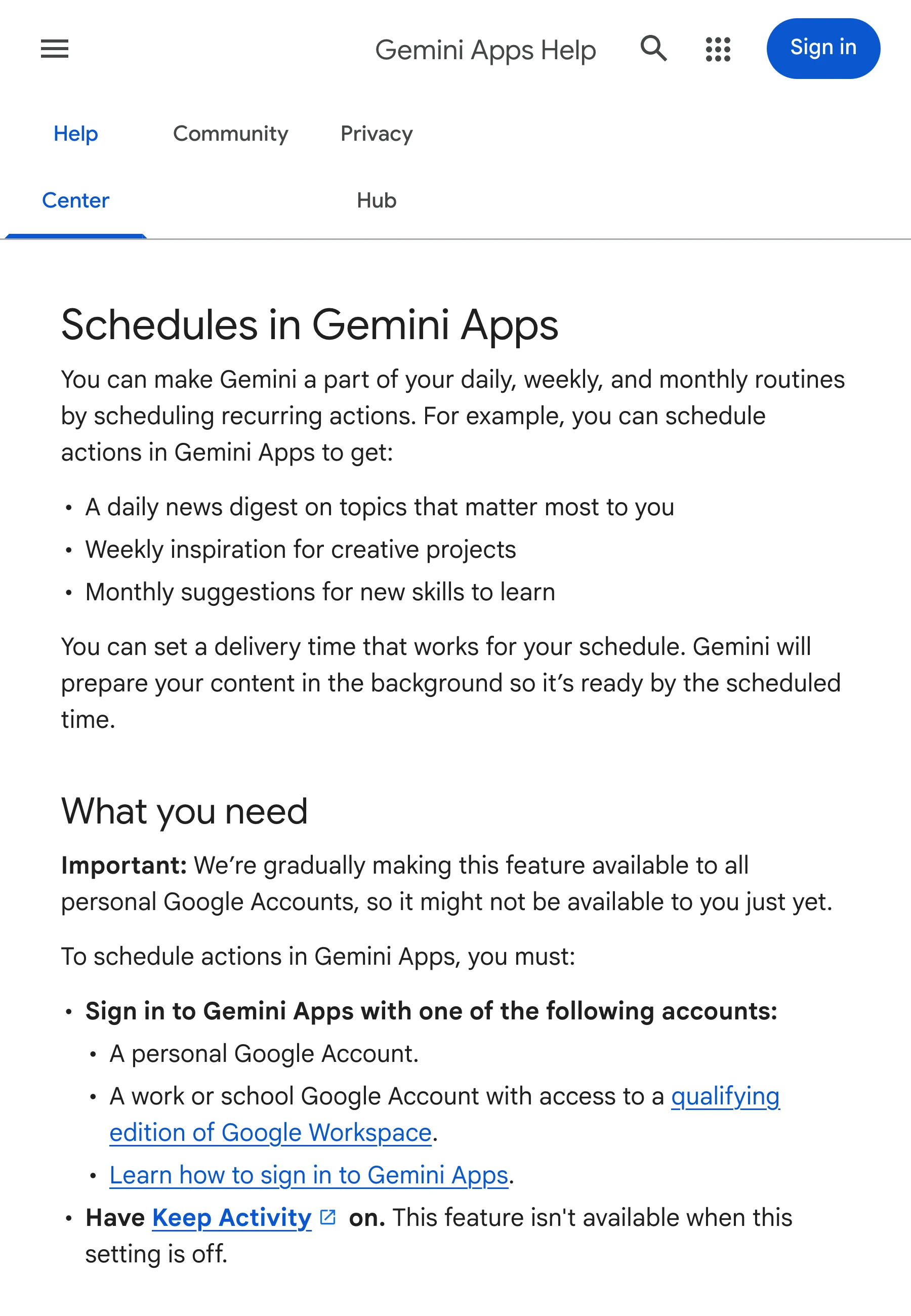
Source: Google Gemini Apps Help. This is the chat-schedule guide, not the separate task-schedule eligibility page. Captured November 10, 2026 at native 3× density; cropped and encoded without alteration.
Chat schedules: useful for a recurring digest
The chat guide describes a gradual rollout to personal accounts, eligible Workspace accounts, Keep Activity being enabled, and a limit of ten active schedules. Google says responses are prepared before delivery and recommends these schedules for summaries rather than rapidly changing information.
For a reading brief, that tradeoff is usually acceptable. Ask for a topic, a time window and source links, then review the first result. “Every Friday, summarize this week's official product announcements” gives you a much clearer audit trail than “keep me updated.”
Before creating a recurring action, decide what no news should look like. Would you prefer a short “no relevant changes” result, or a notification only when something matters? Express that preference, then inspect the saved instructions and actual output. Do not assume silence proves that the source was successfully checked.
A schedule also needs a clear location when local information matters. Put the city or region in the request rather than relying on the location of the device at setup time. For international deadlines, record both the source's time zone and the time you expect to receive the digest.
Task schedules: check the separate access rules
The task guide currently requires a personal account, age eighteen or older, Google AI Pro or Ultra, and Keep Activity. It lists regional exclusions including the EEA, Switzerland and the United Kingdom, and says work or school accounts are not supported for this task feature. Those restrictions must not be transferred to the separate chat-schedule guide.
Task schedules can use time triggers, Gmail monitors and topic monitors. Google also cautions against treating monitors as a service for time-critical events. A task that watches an inbox is not automatically a reliable way to win a fast ticket sale.
Use this distinction when a feature appears to be missing. If you can schedule a chat digest but cannot start a task, first check task eligibility. Reinstalling an app or rewriting the same prompt cannot change the published account or regional rules.
Follow one complete example before scaling up
Teacher's Tech published the following walkthrough on November 9, 2026. The section at 17:27 demonstrates a recurring chat prompt; 21:57 returns to the Scheduled page and shows management alongside task schedules. These are useful visual checkpoints for recognizing the two workflows.
Video: Teacher's Tech, November 9, 2026. The relevant chapters show schedule instructions, frequency and task management. It is an independent account demonstration, not an eligibility promise. Its commentary about preparation timing should be checked against Google's current help page, which is the authority used here.
After watching, test with public, low-stakes information. Ask for a digest of a single official source. Check that the result links to the intended page and distinguishes a publication date from the date the assistant read it. Only then add more sources or connected applications.
Diagnose a missing result in the right order
- Find the saved schedule. Confirm that it is active and has the intended instructions. Keep one version while diagnosing it.
- Read the latest result. An unread chat or a result in Scheduled can exist even when a phone alert did not appear.
- Inspect source access. A calendar or email workflow needs the relevant connected application. A public-page digest should not need unrelated account permissions.
- Check limits and attention requests. Review the account's current usage state and any step waiting for your input.
- Check notifications last. Once a result exists, inspect device notification settings and test delivery again.
Our Gemini usage-limit guide explains why model and tool consumption is a separate question from whether a schedule is saved. Avoid using an old prompt-count table as proof that the next run must succeed.
Match freshness to the decision
A weekly research digest can tolerate preparation before delivery. A stock change, an appointment opening or a booking page that changes quickly needs a different expectation. Always reopen the original source before taking action; the AI summary is a useful reading layer, not a reservation or a guarantee of availability.
If you only need one visible condition on a known webpage, PageDog's page-monitoring workflow can make the evidence easier to inspect. Select the relevant area and define the exact outcome. Checks run locally while your Mac is awake, online and running PageDog; hosted AI can receive captured evidence when AI analysis is used.
PageDog does not activate Gemini features, remove regional restrictions or provide cloud execution while the Mac sleeps. Keep Gemini for a recurring synthesis task, and use a focused watch when the question is a specific visible page state. That separation also helps reduce irrelevant alerts.