In this article
Match the incident to the product and symptom
Start at Claude Status. Look up the product where you noticed the problem: the web chat, Claude Code, the API, the Console, or another named component. An error on one surface can coincide with normal operation on another. Compare the incident description with what you saw before treating the banner at the top as a diagnosis.
Write down when the problem started, what operation failed, and the wording of the error. Compare the timestamp with the incident history. An update posted at 09:00 can describe impact that started earlier. The time in an update and the start of the impact describe different events. Use the impact window, when Claude provides one, to decide whether the outage explains your error.
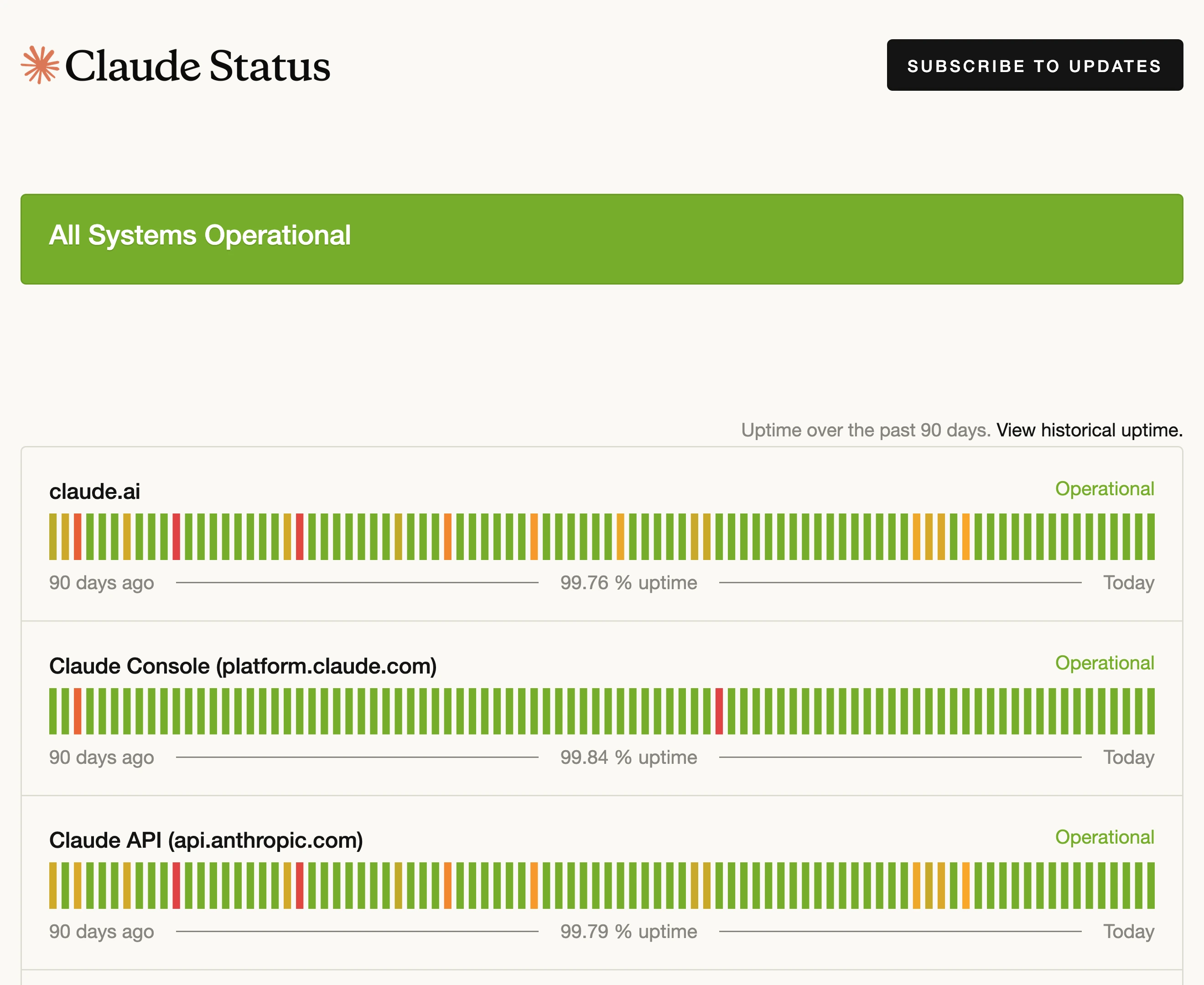
Source: Official documentation, captured November 11, 2026.
Get updates from Claude
The status page offers email notifications when Claude creates, updates, or resolves an incident. Open its subscription controls, choose email, and follow the verification steps. If you already use a feed reader, add the official RSS or Atom link from the same page. Read the incident title and component details before interrupting your work to investigate an alert.
The service also lists text messages, Slack, Teams, and webhooks. Pick the channel your team will actually check. The page describes which events each channel delivers. For example, it describes text messages for incident creation and resolution, while email also covers incident updates.
Claude Status runs on Atlassian Statuspage. Atlassian’s overview shows how the service publishes outages and scheduled maintenance. Use the current Claude page for the notification options available to you.
Read the last update before retrying
An investigating update says the issue is being looked into. A monitoring update can follow a deployed fix while Claude checks recovery. A resolved update closes the reported incident. Read the scope and timing in the text, then try the specific action that failed. If you were sending a request that can change state, confirm the earlier attempt's outcome before sending it again.
If the error continues after the incident ends, save its wording and check Claude's troubleshooting guide. A message about reaching a cap has a different path from a platform incident. See the Claude usage limits guide if that matches the message you see.
What an incident timeline can tell you
On November 8, 2026, the Fable 5.1 incident record reported impact between 08:18 and 08:32 UTC across several Claude surfaces. The investigation update appeared at 08:28 UTC and the resolution update appeared at 08:54 UTC. For someone debugging a failure at 08:25 UTC, the impact window is the relevant part of the record. Someone whose failures started after 08:54 UTC should check for a new incident or a different cause.
The date and time matter when you compare a report with a local log. Convert both to one time zone before you decide they match. If an incident covers a named model or connector, match that detail too. A healthy status for one component can coexist with a problem involving a particular operation. Read the incident text alongside the component row.
Make one low-cost retry
Pick a short action that exercises the part of the service you actually need. If chat was failing, try a small prompt in the affected surface. For an API issue, use a request that lets you inspect the response without triggering a duplicate customer action. If your workflow writes data or calls a connected service, verify its previous output before rerunning the full job.
Save the error, the last known successful time, and the result of the retry. That gives a teammate or support agent a timeline they can check. Keep private prompts and credentials out of public incident reports.
If you hand the issue to a teammate, include the link to the individual incident. The status homepage will move on to newer incidents, while the incident link preserves the update sequence.
Watch a single status row during a work session
If you're working at your Mac and care about the status of one component, PageDog can watch its visible row on the official page. Select the component name and its current state. Reload once and confirm that the same row stays inside your selection. Use a visual change condition if you want to know when the row changes. Read the status page after an alert to confirm what actually changed.
The official subscription is the simplest option for following incident messages over time. A local PageDog watch is useful when you want a prompt about one visible area while you're working on your Mac. Keep the status page accessible to the watch and use the incident description to confirm recovery. For feature changes, see Claude release notes.