
In this article
Fix the matching cause and use a manual check to verify the repair before trusting the next alert.
Diagnose the alert before editing the watch
Compare the captured state with the previous one and use the first matching row:
| What the alert shows | Likely cause | First fix |
|---|---|---|
| An ad, banner, clock, or recommendation changed | The selected area is too broad | Redraw the area around the useful evidence |
| The evidence looks the same but the verdict changed | The goal allows multiple interpretations | Rewrite it as one testable condition |
| A login page or security challenge appeared | The browser session expired | Sign in again and run a manual check |
| The same unhelpful difference appears repeatedly | Dynamic content is included in the evidence | Exclude that content, then review the cadence |
| You cannot tell why it fired | The capture lacks useful context | Include the label, date, variant, or quantity needed to verify it |
This diagnosis prevents a common mistake: making the watch less sensitive until the noise disappears. Low visual sensitivity can also hide a smaller change you wanted to catch.
If irrelevant content changed, tighten the evidence
Redraw the selected area around the smallest block that still proves the result. A price needs its product or variant. An appointment needs its date range. Tickets may need quantity and section.
Keep navigation, footers, ads, recommendations, and live clocks outside the area unless they are part of your decision. If you are creating a watch from scratch, the guide to choosing focused evidence and an exact tracking goal covers that setup in more detail.
Changing the watched area resets its baseline and clears that watch’s saved change history, so export anything you need before editing it.
Other monitoring tools express the same evidence principle differently. Distill’s visual-selector guide documents expanding, narrowing, and excluding page elements, while Visualping’s prompt guidance focuses on describing which changes matter. In PageDog, the selected rectangle and the exact goal work together: one controls the evidence; the other controls the decision.
If the verdict changed, make the goal testable
Read the current goal next to the captured evidence. Could two people reasonably interpret it differently?
Too vague: “Tell me when the tickets change.”
Testable: “Alert me when two adjacent tickets are available in sections 101–105 for less than €120 each.”
A reliable goal names the object, condition, and threshold that would make you act. Split independent outcomes into separate watches instead of mixing price, date, quantity, and location in one instruction.
If the page became a login screen, restore the session
A login page is not a price or availability update. If a login prompt, captcha, or security challenge appears, PageDog marks the watch as Needs attention so you can resolve it manually.
- Open the page from PageDog and sign in there.
- Complete any normal OTP or security challenge yourself.
- Close the PageDog browser when you finish; PageDog runs a manual recheck.
- After a successful capture, PageDog returns the watch to its normal schedule automatically.
A persistent local session can preserve a normal sign-in, but it cannot make authentication permanent or bypass a site’s security checks.
If noise repeats, fix precision before frequency
An aggressive interval does not make an imprecise watch more accurate; it repeats the same problem more often. Remove dynamic content and clarify the goal first. Then choose the slowest interval that still gives you time to act.
Limited tickets may justify frequent checks. A policy page or monthly timetable usually does not.
Verify the repair before resuming
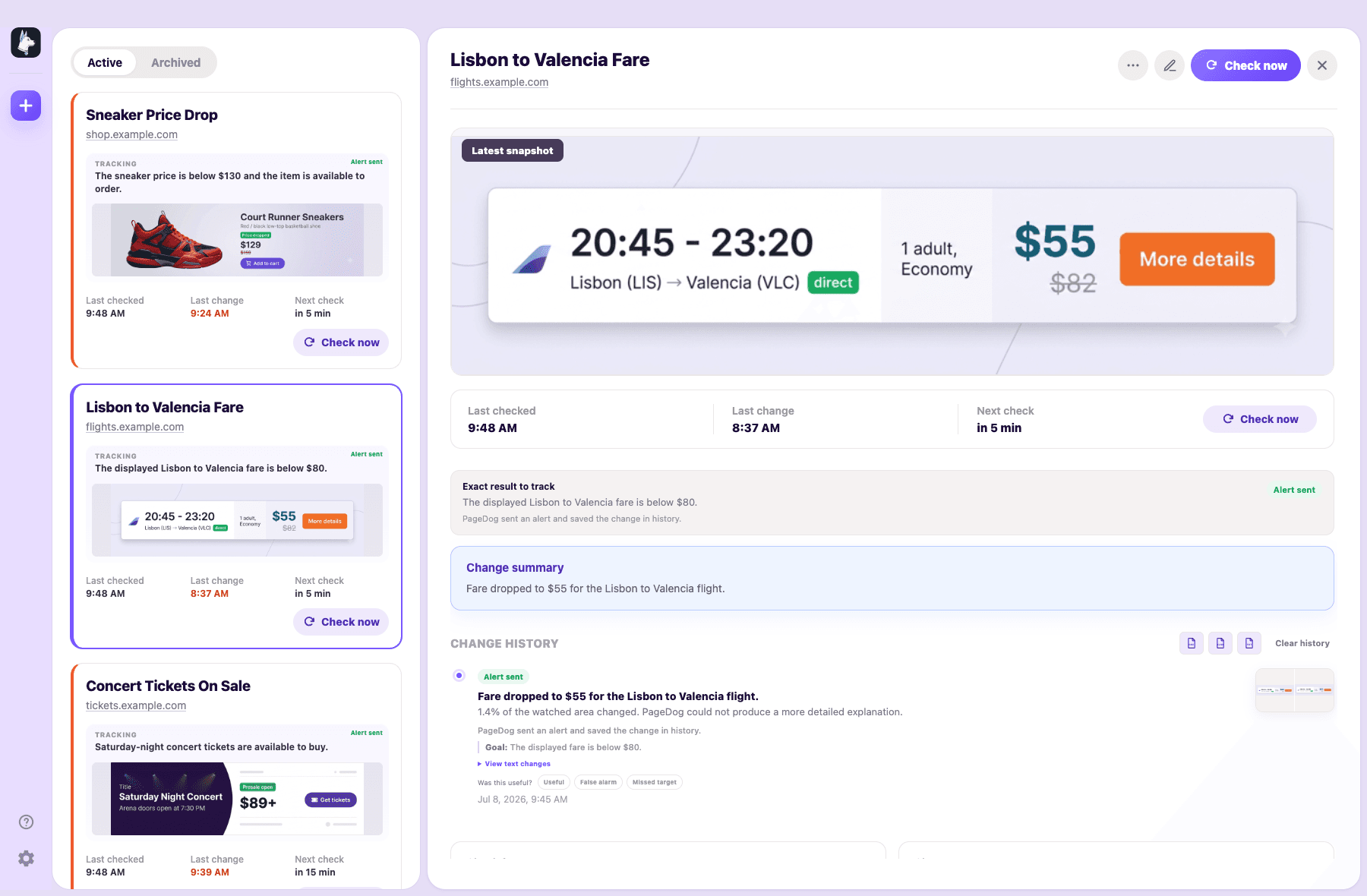
Keeping those four pieces together makes it possible to diagnose whether the area, wording, session, or page itself caused the alert.
Run a manual check and answer four questions:
- Does the selected area contain the complete answer and nothing unrelated?
- Can the goal be judged from that evidence alone?
- Did the page load in the expected signed-in state?
- Does the result include enough context to explain why it passed, failed, or needs attention?
If all four answers are yes, the watch is ready to continue on its normal schedule. If another false alert appears, return to its evidence and classify the cause again. In PageDog, the selected area, exact goal, browser session, cadence, and saved history give you the pieces needed to troubleshoot the watch without guessing. For authentication-specific recovery, see how to monitor a webpage behind a login.
Research sources
This guide reflects recurring requests in the PageDog Market Pain Radar, including ignoring ads and cookie popups while tracking event dates, limiting price alerts to the relevant block, keeping diagnostic context in change emails, and monitoring a page behind email OTP. These are individual reports, not a market-size estimate.