In this article
Check the desktop availability page first
Start with Gemini in Chrome availability. Check the requirements under Computer and look for your country or territory in the current list. The language of the Help Center page tells you which translation you're reading. Check the actual availability list to see where Google offers the feature.
Google rolls out Gemini in Chrome over time. If you can use Gemini at gemini.google.com, you’ve confirmed access to the web app. Check the Chrome-specific requirements separately. Likewise, if an announcement shows Gemini working in another country, open the current desktop help page before using it to diagnose your own browser.
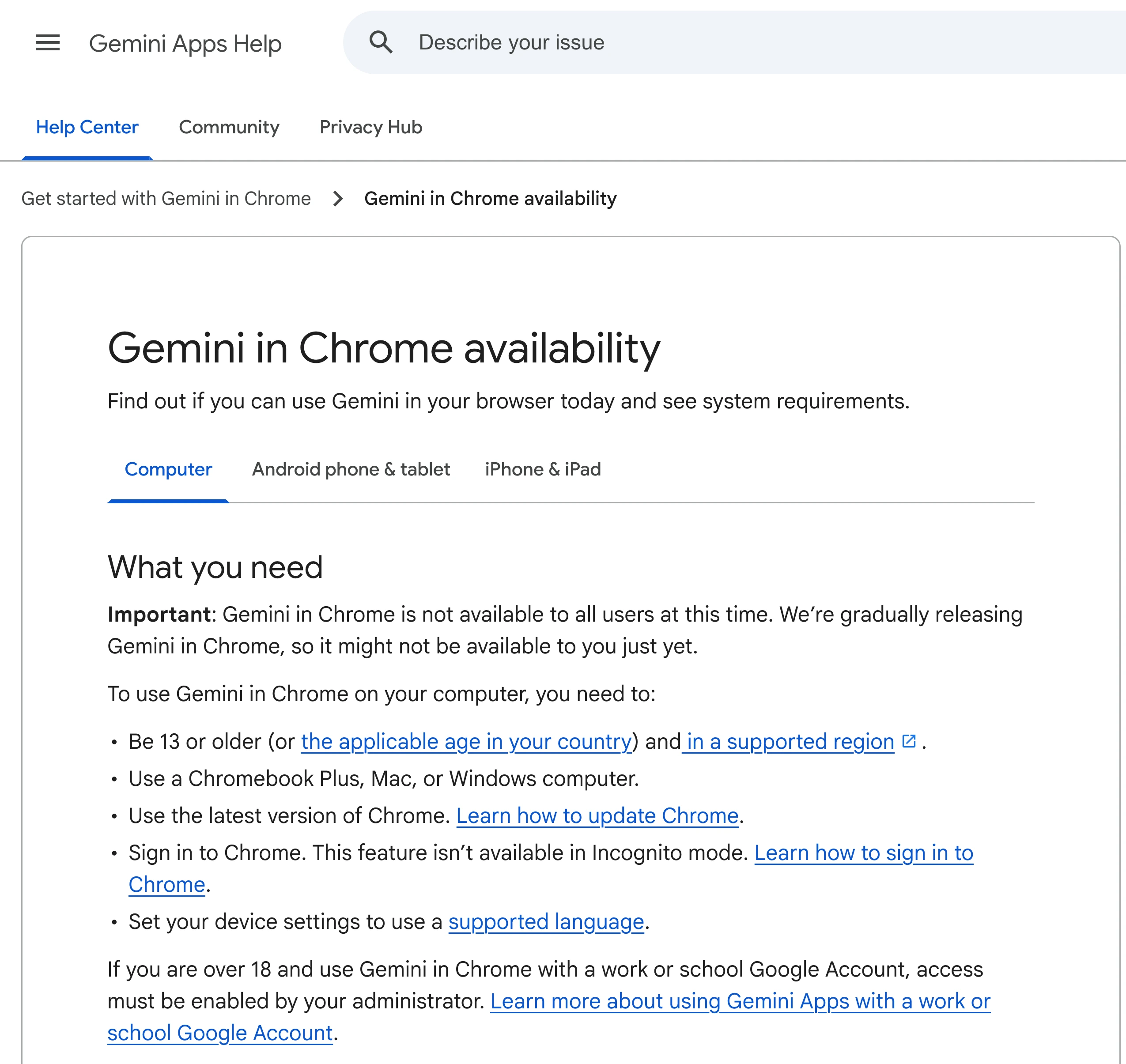
Source: Official documentation, captured November 11, 2026.
Check the account in the current Chrome profile
A browser can have multiple profiles, and the Google account you see in a web tab may differ from the account connected to the profile. Confirm which Chrome profile is active and which account you're trying to use.
For an eligible work or school account, Google says the administrator must enable access. If the same computer shows Gemini in a personal profile but the button is absent from the work profile, check the work account's eligibility and ask your administrator about the setting. The personal profile is a useful comparison because the computer and browser are the same, but the account and its policies differ.
If the current account meets the requirements, use Google's desktop guide to find the toggle that shows or hides Gemini at the top of Chrome. Install the current Chrome update and relaunch if Google's instructions call for it. Recheck the same profile after relaunch.
Decide what to check next
If your country is missing from the availability list, bookmark that section. Check it again when Google announces another rollout. If your country is listed but your work account lacks access, the administrator is the next person to ask. If the account is eligible and the control exists, use the toolbar setting to show it. Keeping these checks separate helps you avoid repeating browser settings changes while waiting for Google to expand availability.
Separate the button from the action you want
Google’s desktop help lists a Chromebook, Mac or Windows computer, the latest Chrome version, a supported device language, and sign-in to Chrome. It also excludes Incognito. Start the check in a regular browser window. If you use a different device, switch to its tab on the help page and read the requirements there.
Seeing the button answers one question. Whether it can do a particular task is a separate check. Google’s launch video shows the assistant beside a web page and demonstrates additional features. Its availability language reflects the launch. Use the current help pages for your account, including any requirements for a particular action you see in the demo.
Suppose you can open the panel and ask about the page, but a coworker can also ask Gemini to take several steps for them. Reinstalling Chrome would be a poor first test. Check the eligibility for that action and compare the account types. Save the exact name of the feature you're waiting for, so a headline about Gemini expanding to another country doesn't send you back through the whole checklist.
If you want to compare two profiles, test the same feature in both and record whether the button is visible and whether the panel opens. Those are two separate observations.
Watch the requirement that affects you
On a Mac running PageDog, use the official public desktop availability page as the target. If you are waiting for a country to appear, select the relevant part of the visible list and use a visual change condition. Check that the same text appears in the selected area after a reload. An update is a cue to read the list and confirm your account in Chrome. A layout change can also trigger a visual alert.
Give the watch a name that tells you what to do next, such as “Recheck desktop Gemini country list.” If the page changes, open it and read the updated requirements before you try the button. If the text has moved outside your selection, redraw the area. Once the requirement is satisfied or you decide to use the web app instead, stop the watch.
If you need help after those checks, note the Chrome version, operating system, account type, language, and the setting that is missing. Share those details with support or your administrator without sharing passwords, account recovery information, or private pages.
For a different Google feature, the Gemini scheduled actions guide explains how recurring prompts work. The Gemini usage limits guide covers limits once you have access.