In this article
Check the native usage view first
On the web, open Gemini, confirm the Google account you are using, then choose Settings at the bottom left and Usage Limits. Google’s current limits guide documents that path. It also says Gemini warns you near a limit and displays refresh information when you reach it.
Read the notice before calculating a reset yourself. A five-hour window and a weekly allowance can constrain the same session. Waiting for the shorter window does not necessarily restore access after the weekly allowance has been exhausted.
| What you need to know | Where to look | What not to infer |
|---|---|---|
| Your remaining allowance | Gemini’s Usage Limits view | Another user’s message count is your quota |
| When access returns | The notice for the allowance you reached | Every limit resets at local midnight |
| Why a task consumed more | Model, thinking level, features and conversation length | Every prompt has equal cost |
| Whether the policy changed | The dated Google help pages | An old daily-quota table still applies |
If you use several Google accounts, account selection belongs at the start of the diagnosis. A personal account and an employer-managed account may be subject to different documentation. Record the account type, named model and exact notice without sharing private conversation content.
Why counting prompts gives the wrong answer
Google’s change notice dates the move to compute-based limits to May 17, 2026 for adults and July 24, 2026 for users under 18. The calculation considers the work requested, rather than treating every submitted message as one identical unit.
A short rewrite and an extended reasoning task with a long conversation can consume different amounts. Media generation, Deep Research and more intensive thinking are examples Google identifies as heavier usage. There is no reliable conversion from “I sent ten prompts” to a universal percentage remaining.
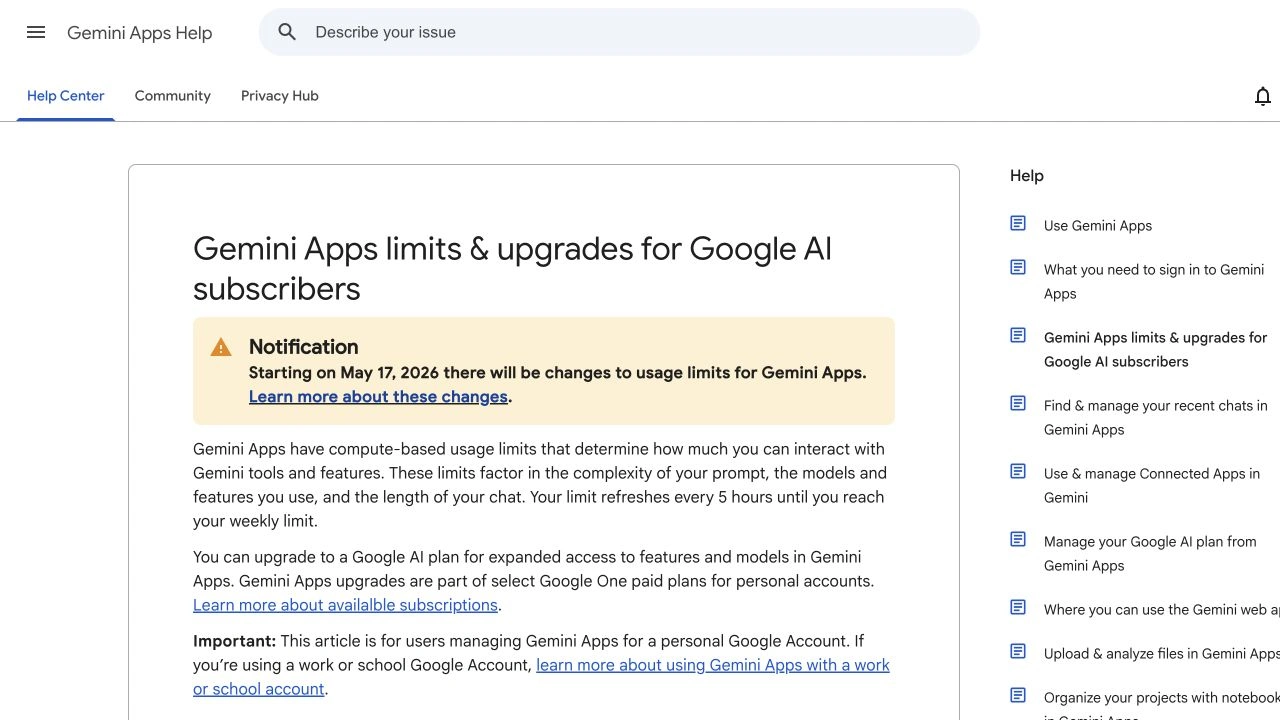
Source: Google Gemini Apps Help, captured September 25, 2026. The introduction states the refresh rule and limits its scope to personal accounts. Open the full-size image.
For a practical comparison, note the meter before and after one representative task. Keep the model and feature consistent, and treat the result as an observation about that task. Do not multiply it into a promised daily capacity: later requests can require different work.
Starting a new chat can be sensible when the old context is irrelevant. It also removes useful context, and it is not a reset mechanism. Keep the material needed for accuracy instead of deleting context merely to chase a lower meter reading.
Understand the two waiting windows
The most useful question is “Which allowance is stopping this request?” A short-window limit and a weekly limit require different expectations.
Suppose the interface says your shorter allowance refreshes at 14:20. Use that displayed time for your next check. If the weekly allowance is also exhausted and has a later reset, 14:20 is not a promise that the desired model will become available. This is an illustrative diagnosis, not a published reset time for every account.
Avoid turning “every five hours” into “five hours from my last message” or “five hours from when I noticed the problem.” The notice is more specific than either guess. Similarly, the current personal-account rule does not establish a universal midnight reset.
Lvl 99 TechSkillz demonstrates the settings and usage-dashboard navigation in this May 20, 2026 walkthrough:
This is an independent tutorial, not a Google announcement. Its older model labels may differ from today’s interface; use it to locate the controls, then use your live notice and Google’s current guide for the rule.
Separate personal Gemini, Workspace and the API
A search for “Gemini limits” mixes several products. Before applying an answer, identify the surface where the problem occurred.
| Surface | Correct reference | Useful distinction |
|---|---|---|
| Gemini Apps with a personal Google account | Personal-account limits guide | Compute-based five-hour and weekly windows |
| Gemini with a work or school account | Work and school guidance | Access depends on the managed account and edition |
| Gemini API or an application using it | Gemini API rate limits | Project-level request and token limits |
For the API, Google documents requests per minute, tokens per minute and requests per day, with daily request quotas resetting at midnight Pacific time. That API rule is not evidence that a personal Gemini chat resets at midnight Pacific. Keep API errors and the consumer app’s notices in separate troubleshooting notes.
Our Google AI Plus versus Pro guide addresses choosing a subscription. This article answers a different question: how to interpret the allowance already attached to the account you are using.
Choose the next action after a limit
Google currently says subscribers who reach the applicable limit can continue a conversation with Flash-Lite, or wait for the limit to refresh. Check which option your interface actually offers. Switching to a lighter available model can help with a simple task, but it may be unsuitable for work requiring stronger reasoning.
If the displayed reset passes and the problem remains, capture the notice and check the account and feature again before assuming the timer is broken. Keep a short record of the model, task and time. That gives support a concrete issue to investigate and helps you avoid comparing unrelated allowances.
For routine work, reserve intensive features for tasks that need them. Ask for the output you actually want, provide relevant context, and review the result before requesting repeated full rewrites. These are workload choices, not guaranteed quota-saving percentages.
Watch a published rule when it affects your workflow
Use Gemini’s native meter for your private remaining usage. A separate task is noticing when Google changes a public rule your team relies on—for example, the published refresh interval.
In PageDog, open the official limits page on your Mac, select the complete introductory paragraph and set a concrete condition: “Notify me when this paragraph states a refresh interval other than five hours.” Run a check and inspect the captured area before scheduling it. Include the surrounding sentence so a number elsewhere on the page cannot satisfy the condition by accident.
PageDog checks the selected visible area locally on an awake, online Mac and uses hosted AI to evaluate it. It does not reset Gemini, predict your remaining allowance, or keep checking in the cloud while the Mac is off. Our website-change monitoring guide explains setup; the false-alert checklist helps narrow a noisy selection.
The decision is simple: use the account notice to plan today’s work, and monitor the public documentation only when a future policy change would alter that plan.
Research sources
- Current personal-account behavior: Google’s limits guide and dated change notice, checked September 25, 2026.
- Scope boundaries: Google’s work/school guide and Gemini API rate-limit documentation linked above.
- Navigation demonstration: Lvl 99 TechSkillz, May 20, 2026; independent video, with current documentation taking precedence.