
In this article
Start with the notification the website already offers
A restock email, saved-job alert, booking waitlist or release feed is often the simplest answer. It comes from the service that owns the information and may continue working while your computer is off. Check whether it covers your exact product variant, location or search filters.
On a compatible Mac, also check Safari’s Notify Me. Apple’s current macOS 27 Safari guide, checked September 22, 2026, documents an Apple Intelligence feature for following specified page updates. Open the page menu, choose Notify Me, describe what to look for, and adjust the checking frequency if needed.
Apple notes language and regional restrictions and possible usage limits. Check availability on your own Mac; this is a documentation-based recommendation, not a hands-on test of Safari. If the built-in option covers your condition, use it before adding another tool. The selected-area workflow below is useful when you need a different monitoring setup or want to verify exactly what your chosen monitor captures.
Browser notification permission is a different mechanism. Apple’s Safari guide explains how to allow and manage notifications sent by websites. Allowing a site to notify you does not itself create a monitor for every change to that page.
Likewise, Google Alerts emails you about newly found search results matching a topic. It is useful for mentions and new coverage. It is not a promise to inspect a particular booking calendar or signed-in page at a chosen interval.
| What you need | First option and its boundary |
|---|---|
| A shop’s restock email | Native product alert; verify the size, region and delivery method |
| A page update in Safari | Notify Me, when available; check Apple Intelligence eligibility and limits |
| New articles mentioning a topic | Google Alerts or a feed; search discovery is different from a page check |
| A specific visible page state | Selected-area monitor; the target must load and remain visible |
| Checks while your computer is off | Cloud monitor; its remote browser must reach the same content |
| A local Mac workflow | A local monitor such as PageDog; the Mac must remain available |
Choose where the checks will run
“Receive an email” does not tell you where a monitor operates. A local tool can send email, while a cloud service can display results in a browser. Ask which machine actually opens the page.
Distill’s local-versus-cloud documentation makes this distinction explicit: its local checks need the local browser or app running, while cloud checks run on its servers. A page that works in your own session may behave differently in a remote browser.
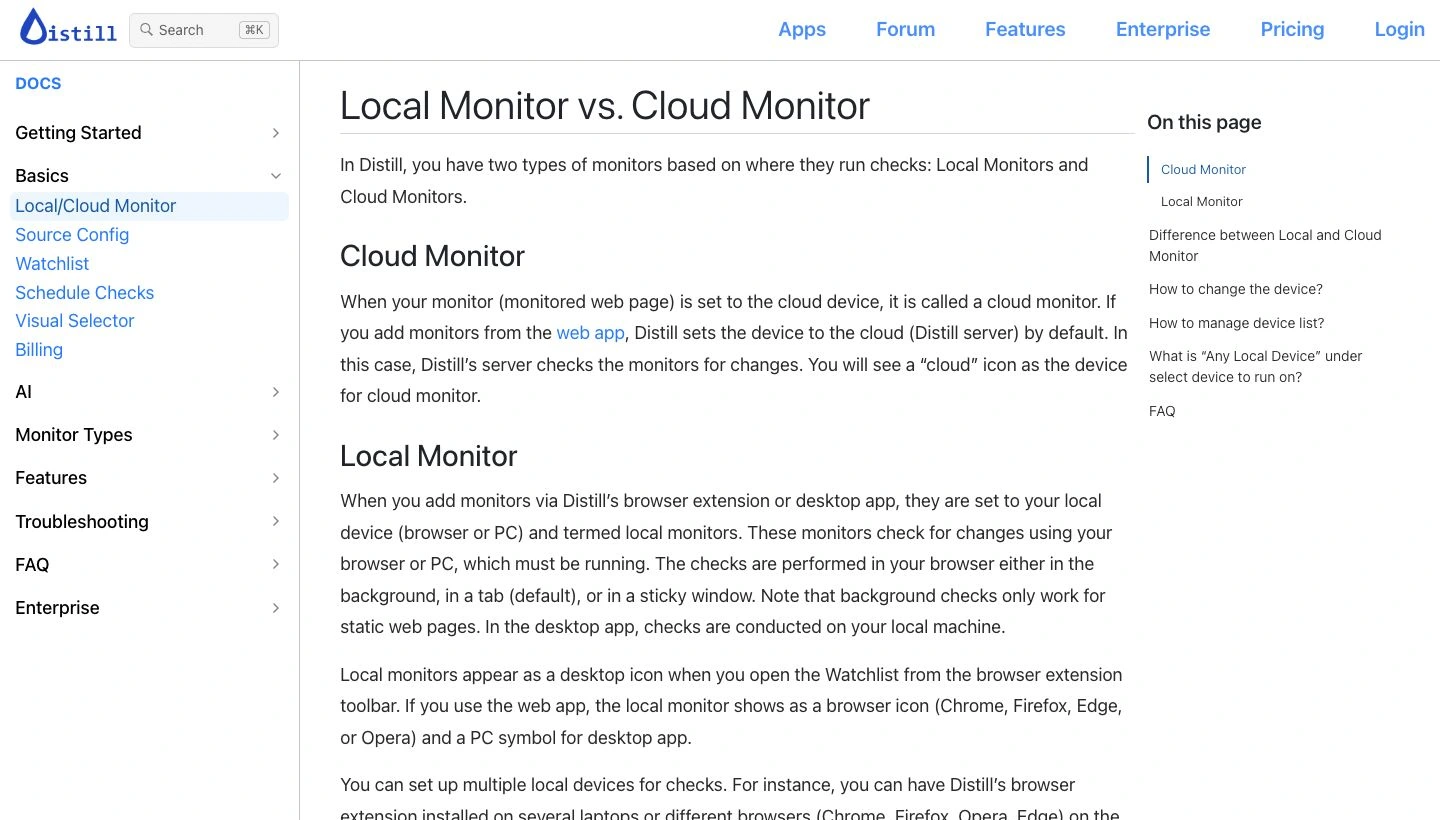
Source: Distill documentation, captured September 22, 2026. The page distinguishes the device performing each check. Open the full-size image for the detailed text.
For a public page and continuous coverage, compare services such as Visualping or Distill’s cloud option. For a local session and an exact visible condition on a Mac, PageDog is another option. Choose based on the page and operating requirements, rather than assuming every product with alerts works the same way.
A useful preflight is to reopen the target URL. Does the same result appear, or must you rebuild a search, choose dates and navigate several screens? A monitor needs a repeatable view. Do not buy a plan before checking that basic requirement.
Select the smallest area that still proves the answer
A whole-page comparison can include banners, recommendations and unrelated updates. A tiny selection can lose the context needed to interpret the change. Include the value and its label.
For a documentation update, that might mean one feature’s heading and its availability statement. For a workshop booking, include the workshop name, date and visible availability. Watching only a generic “Available” label can confuse one result with another.
Distill’s official tutorial demonstrates selecting page elements and configuring a monitor:
Video: Distill, premiered April 29, 2024. It is an older, still-linked walkthrough of Distill’s selection workflow. Use the current extension guide for present controls and limits; the video does not show PageDog.
Before scheduling, compare your selection with this checklist:
- The subject and relevant label are visible together.
- The selected region excludes unrelated moving content where possible.
- The text is large enough to interpret in the saved capture.
- The same state returns when the page is reopened.
- A login prompt or incomplete load would be recognizable as a problem.
Turn a vague change into one testable condition
“Tell me when something changes” leaves you to inspect every difference. Instead, write the decision you would make from the page.
| Vague instruction | More useful condition |
|---|---|
| Watch the workshop page | Alert when the October 8 workshop shows a bookable place |
| Follow the product documentation | Alert when this feature’s status changes from preview to generally available |
| Watch the careers page | Alert when this selected list contains a remote support role |
These are illustrative conditions, not claims that the example pages were tested. Each needs the relevant evidence inside the watched region. A condition cannot reliably answer a question that the page does not show.
Keep independent tasks separate. If a role opening and a documentation release would trigger different actions, use separate watches so each result has a clear meaning.
Set up a focused check in PageDog
PageDog checks a selected visible webpage area on your Mac and uses hosted AI to evaluate your written condition. The local part is page loading and capture; “local” does not mean the AI evaluation is offline.
- Open the target page in PageDog and sign in there if needed.
- Select the visible region containing the subject and status you care about.
- Describe one precise condition and review it before saving.
- Choose a schedule that matches how quickly the information matters.
- Run a check and inspect the saved capture and outcome.
For the workshop example, a capture showing the right date but a cookie banner over the availability is not a usable baseline. Resolve the page state yourself and check again. The first successful capture should let you identify the exact workshop without guessing.
PageDog requires an awake, online Mac for scheduled checks. Sessions can expire, and login, CAPTCHA or other security challenges may require your attention. It does not automatically complete a booking, purchase an item or build a sequence of browser actions for you. If the target view needs repeated interactive navigation, test its repeatability before relying on it.
Choose a useful interval and review the result
An interval is a checking cadence, not an instant-notification guarantee. If checks run every 30 minutes, a change immediately after one check could wait almost 30 minutes for the next opportunity to be observed. Loading, evaluation and notification delivery can add time; sleep or a failed check can add more.
That simple timing example helps you decide whether a local monitor is suitable. A documentation status that changes occasionally may tolerate a slower cadence. A booking that disappears within seconds may not. Faster checks cannot guarantee that you will win a race for limited availability.
After an alert, review the evidence and open the source before acting. If the result is noisy or the wrong session was captured, use our false website change alerts checklist. If you need historical evidence rather than future notifications, see how to check when a website was last updated.
Your first monitor should answer one question
Use a native alert when it covers your need. Otherwise, choose local or cloud execution deliberately, select enough context to prove one result, and verify the first capture. A reliable monitor starts with a page you can reproduce and a condition you can judge.
Research sources
- Native notifications: Apple’s Safari notification guide and Google’s alert documentation, linked above.
- Monitoring methods: current Distill documentation and Visualping’s product information.
- PageDog behavior: the product documentation and current desktop capture, session and runtime implementation, reviewed September 22, 2026.