In this article
Choose the source that answers your question
OpenAI's ChatGPT release notes in the Help Center are a useful starting point for product changes. For a readable weekly overview, use What's new on ChatGPT Learn. That page explicitly points readers to the full changelog for versioned updates and smaller improvements.
The ChatGPT and Codex changelog groups dated entries and provides product filters. Use it when you need to identify a specific app release, fix or rollout notice. Developers investigating API behavior should check the separate API changelog, because an API change is not automatically a change to the ChatGPT interface.
This source map was checked November 10, 2026. It is a way to read ongoing updates, not a frozen list of everything currently available. Keep the original links in your notes so you can revisit the applicable entry later.
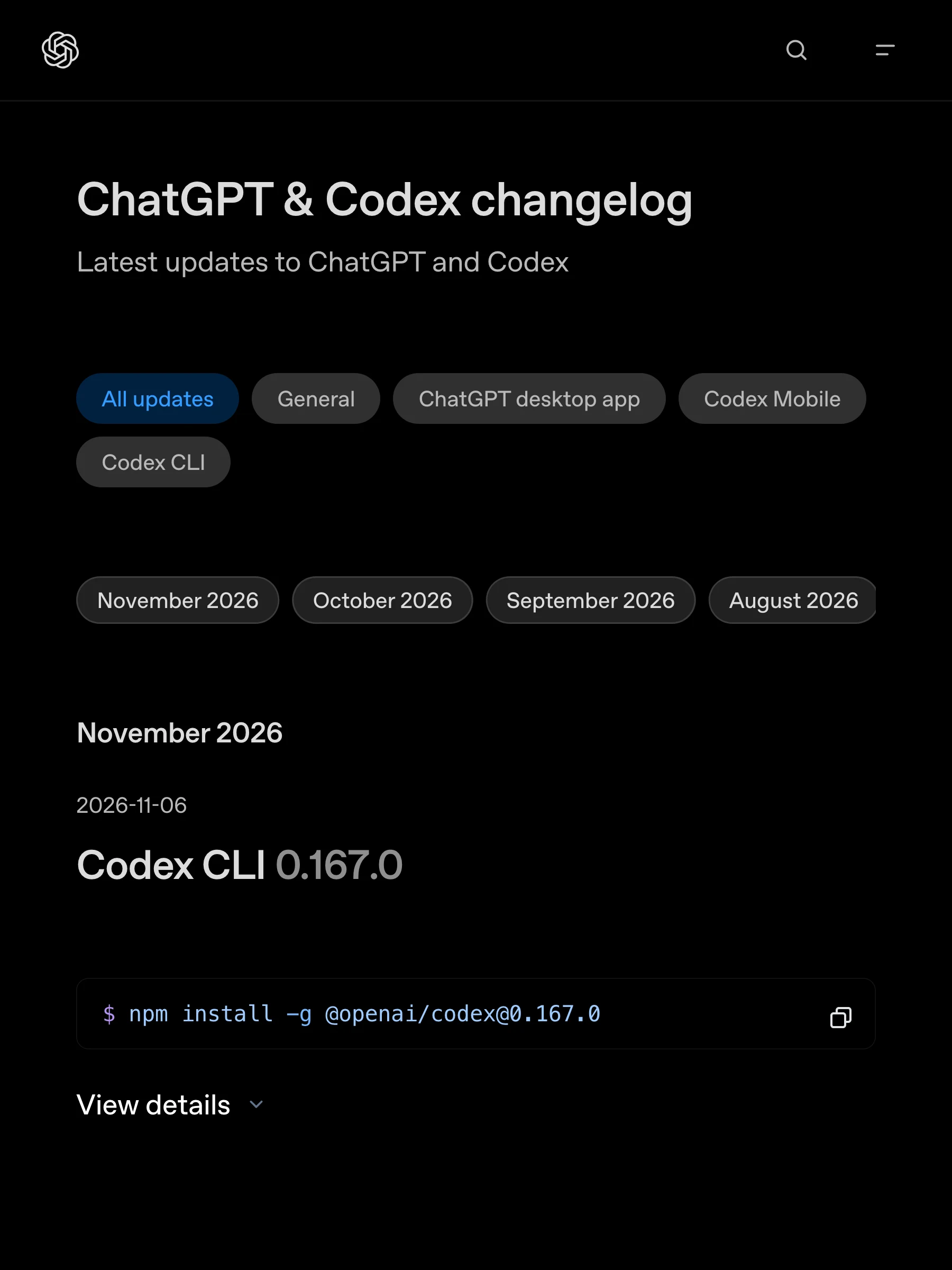
Source: ChatGPT Learn changelog. Product filters and dated entries help separate app releases from broader announcements. Captured November 10, 2026 at native 3× density; cropped and encoded without altering the page.
Read every entry as a scoped claim
A release note answers a narrower question than “what can ChatGPT do?” It may describe one platform, one client version, a particular plan or a staged rollout. Before testing a new feature, record the conditions attached to the announcement.
Use this five-field note:
- Feature: the specific capability or fix you care about.
- Surface: regular chat, Work, a desktop or mobile app, Codex, or the API.
- Eligibility: plans, regions and any workspace restrictions stated in the source.
- Timing: the entry date and whether access is available, in beta or still rolling out.
- Verification: the control or behavior you will look for in your own account.
This turns a broad headline into a testable expectation. It also prevents a common mistake: taking a demonstration from one product surface and assuming the same controls must appear in another.
For example, the changelog's November 2 iOS entry includes changes to task read status and follow-up behavior. Those are useful release details for that client. They do not, by themselves, establish that every account has access to every task-related feature.
A demonstration explains behavior, not eligibility
OpenAI's July 15 video on scheduled tasks shows concrete recurring-work examples. It is useful for recognizing the intended workflow before you read the current setup instructions.
Video: OpenAI, July 15, 2026. The demonstration covers scheduled work such as briefs and feedback triage. Use it to understand the feature; check the current documentation for account access, supported connections and execution requirements.
A video can remain useful after the interface changes, but its publication date matters. Compare the demonstrated outcome with the latest guide. If a control moved, follow current instructions. If eligibility changed, follow the current availability statement. Neither a missing button nor an old recording alone proves that something is broken.
Our ChatGPT scheduled-task guide applies that distinction to one practical case: verifying a saved schedule, a completed run and the resulting deliverable separately.
When an announced feature is missing
Start by confirming that you are looking at the correct product surface and signed into the intended account. Check the app version when the entry identifies a client update. Then read the associated help page for plan, region or administrator requirements.
Treat gradual rollout language literally. An announcement date is not a promise that every eligible account receives the control at the same moment. Conversely, do not assume every missing feature is a rollout delay: a managed workspace may have its own access controls, and an older client may not expose new UI.
If the source says access should be available and you still cannot find it, collect a compact support example. Include the feature name, original entry URL, your platform and app version, and what you observe. Avoid sharing private conversations or account credentials in a public report.
For consumption-related problems, check ChatGPT usage limits. Release notes and usage rules answer different questions. A new model announcement does not mean the model has unlimited capacity on your plan.
Follow updates without turning every edit into an alert
The versioned changelog has an official RSS feed. If you want new entries in a feed reader, start there. It avoids building a page monitor for a notification channel the publisher already supplies.
For a weekly overview, the What's new page may be sufficient. If you only care about one feature's availability, bookmark its specific documentation and define the exact change that matters: a region being added, a plan becoming eligible or a beta restriction being removed.
A small watch is more useful than “alert me whenever anything on this giant page changes.” Navigation, older entries and unrelated platform releases can change without affecting your decision. Keep the source entry date alongside the date you checked it, and reopen the original documentation before acting.
Our Claude release-note guide uses the same source-first approach for a different product. The sources differ; the need to distinguish an announcement from your own access remains.
Where a focused PageDog watch fits
Use the official feed for broad new-entry updates. PageDog is an option when you need a specific visible condition on a page that the feed does not express, such as a particular availability sentence changing.
Open the exact source page, select the relevant area and describe the outcome. Review the initial evidence before saving the watch. Monitoring a focused website area makes the alert easier to connect to the original claim.
PageDog runs checks from your Mac while it is awake, online and running the app. Hosted AI can receive captured evidence for AI analysis. A watch does not unlock a feature, establish eligibility or guarantee that a rollout has reached your account.
Use the resulting notification as a reason to revisit the source and test the feature in the correct app. That closes the loop between what was announced, what the documentation says now and what you can actually use.