In this article
Start with a task you can verify
Use ChatGPT's own scheduling controls first. Open Scheduled, create or inspect the task, and confirm the saved instructions and next run. The official scheduled-task guide describes recurring tasks, monitoring, notifications and account-dependent availability. It also explains that permissions or a paused task can interrupt delivery.
Avoid beginning with “watch everything important about AI.” A useful first test has one source, one output and one time zone. For example: ask for a short weekly summary of one product's official release notes, with links to dated entries. Run that request manually before scheduling it. You should be able to open every cited entry and explain why it belongs in the report.
This is a setup method, not a claim that we tested your account. We checked the public instructions on November 10, 2026; your enabled tools, app version and workspace permissions still determine what your task can do.
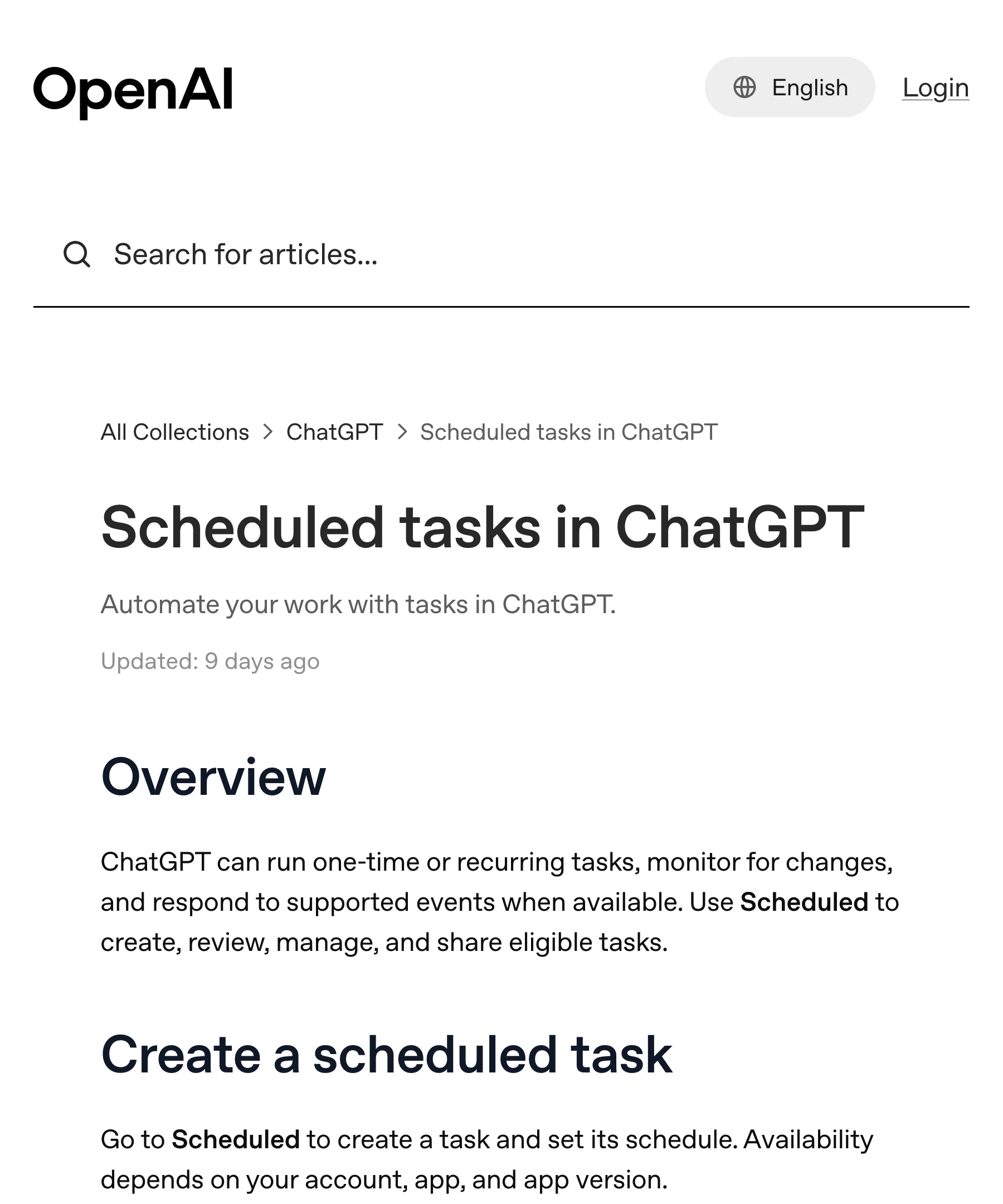
Source: OpenAI Help Center. The current guide describes creating and managing tasks. Captured November 10, 2026 at native 3× density; cropped and encoded without changing the page.
Use three checkpoints instead of one success label
Checkpoint one: the schedule exists. Inspect the saved task itself. A conversational reply saying that something will happen is weaker evidence than an actual task with the intended instructions, cadence and next run. Check the time zone explicitly when the task concerns a launch, deadline or a team in another country.
Checkpoint two: a run produced a result. Open the task's run history. Look for the output for the expected occurrence, an error or a request for your attention. If there is no run, changing phone notification settings cannot create one.
Checkpoint three: the result meets the request. Open the linked source or destination. A report should contain current evidence. A requested file should exist where you asked for it. An update to an external application needs confirmation in that application. “I prepared the update” and “the destination now contains the update” are different results.
For a release-note digest, keep a small record: source URL, entry date, product surface, what changed and why it matters. If the report cannot supply those fields, refine the instructions before increasing its frequency.
Fix the layer that failed
When no new result appears, inspect whether the task is active, whether its associated conversation still exists, and whether it needs approval or additional information. The Help Center notes that inactive tasks can pause and that archiving or deleting an associated chat can affect execution. Resume or edit the existing task instead of immediately creating another copy.
When a result exists but no alert arrived, inspect Settings → Notifications and the permissions for the device you expect to notify you. Test one notification channel at a time. Otherwise you can accidentally turn a delivery problem into several duplicate schedules.
When a result is incomplete, identify the missing dependency. Does the source require a connected app? Did a permission expire? Was the request supposed to write something but only read access was available? Treat an approval request as a checkpoint to resolve, not a reason to grant unrelated access.
Keep a single failing example when contacting support: the expected occurrence, the actual run result, the source involved and the missing output. Remove private content from anything you share publicly.
Test once, then schedule the proven request
OpenAI's scheduled-task walkthrough recommends refining a regular chat result before scheduling it. That is especially useful for a recurring brief: the first run reveals whether the prompt finds the right material and produces a format you can review.
Video: OpenAI, August 28, 2026. The lesson demonstrates a meeting-brief workflow, reviewing results and managing recurring work. It illustrates the setup sequence; it does not establish that every connector or account supports the same actions.
An effective recurring instruction identifies the source, freshness window, output and stopping condition. For example: “Each Monday, review this official changelog for entries added since the previous successful report. Link each entry. If the source cannot be read, say so and preserve the previous checkpoint.” This is an example to adapt, not a universal guarantee of duplicate-free execution.
Separate cloud tasks from local work
OpenAI's desktop scheduling documentation says project tasks that need local files require the computer and app to remain available. Do not infer local access from the fact that a cloud conversation can continue in the background.
A useful dependency test is to list what the work actually needs: public web pages, connected cloud files, a folder on your Mac or an interactive browser. Ask for an explicit incomplete result if any essential dependency is unavailable. That is more useful than an optimistic summary that silently skips the difficult step.
Our ChatGPT usage-limit guide covers a separate constraint: a schedule does not create unlimited model or tool capacity.
When a focused page alert is simpler
Keep ChatGPT for work that benefits from research, synthesis or multiple connected sources. If your question is only whether one visible line on a known page changed to a particular state, a focused website watch can be easier to audit.
PageDog lets you select the visible evidence and describe the outcome. Its checks run on your Mac; the computer must be awake, online and running the app. Hosted AI can receive captured evidence for AI analysis. It does not repair a ChatGPT task, bypass a login challenge or guarantee an instant alert.
Start with monitoring one part of a website. Verify the baseline, then inspect the evidence behind the first alert. For a broader recurring briefing, repair the native task instead of replacing it with a page monitor. The right choice follows the result you need: a researched report or one observable page condition.