In this article
You enter passwords, one-time codes, and CAPTCHAs yourself. PageDog does not know or save your password.
Follow these four steps
Step 1: Paste the page address
Open PageDog and choose New watch. Paste the address of the page you want to check into the Where box.
Give the watch a short name that you will recognize later. For example, use “Monday appointment availability.”
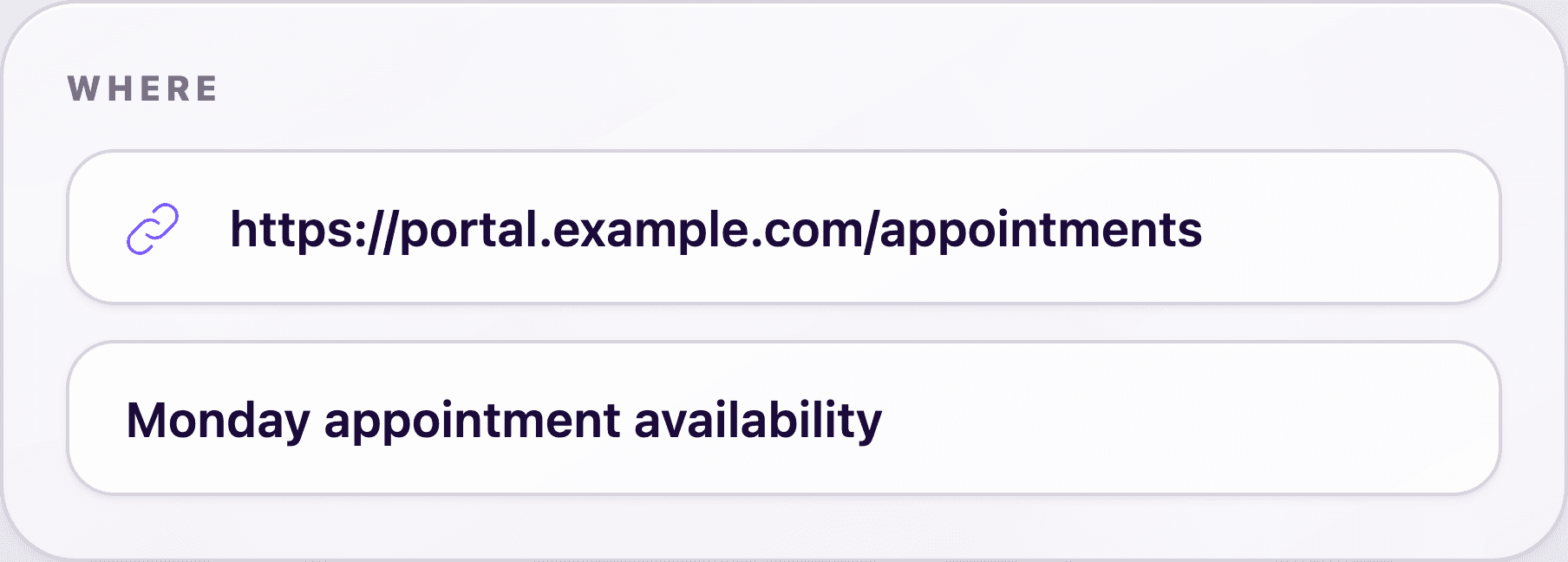
Screenshot: PageDog for Mac shows where to paste the page address and name the watch. Captured August 5, 2026.
Step 2: Pick the part of the page that matters
Choose Select area. PageDog opens the webpage in its local browser.
If the website asks you to sign in, sign in normally. Complete any one-time code or CAPTCHA yourself. When the page is ready, draw a box around the result you care about.
Keep the box small, but include enough information to understand the result. For an appointment, include the date and the message that says a time is available.
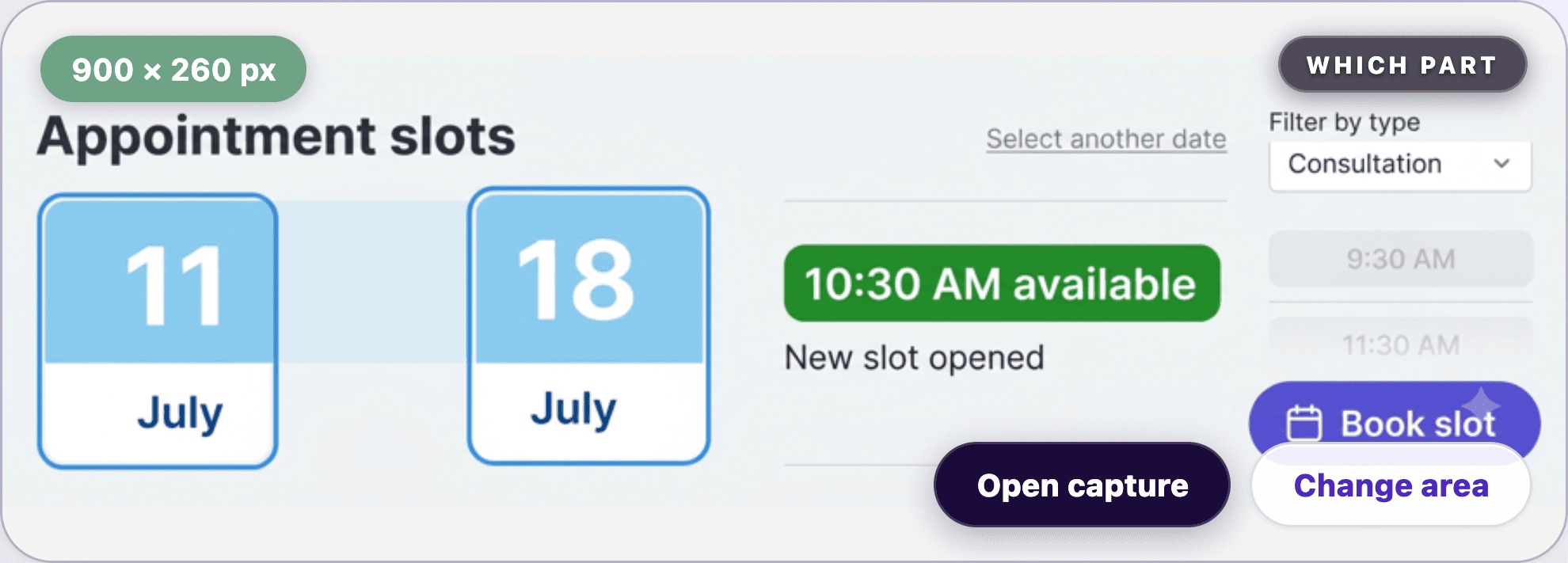
Screenshot: PageDog for Mac shows the selected evidence and the Open capture button. Captured August 5, 2026.
Choose Open capture if you want to inspect the saved area at full size. Choose Change area if the box contains the wrong information.
Step 3: Say exactly what you want to know
In the What box, finish the sentence “Alert me when…” with one clear result.
For example: “An appointment is available on Monday before 12:00.” This is easier to check than a vague instruction such as “Watch for appointments.”
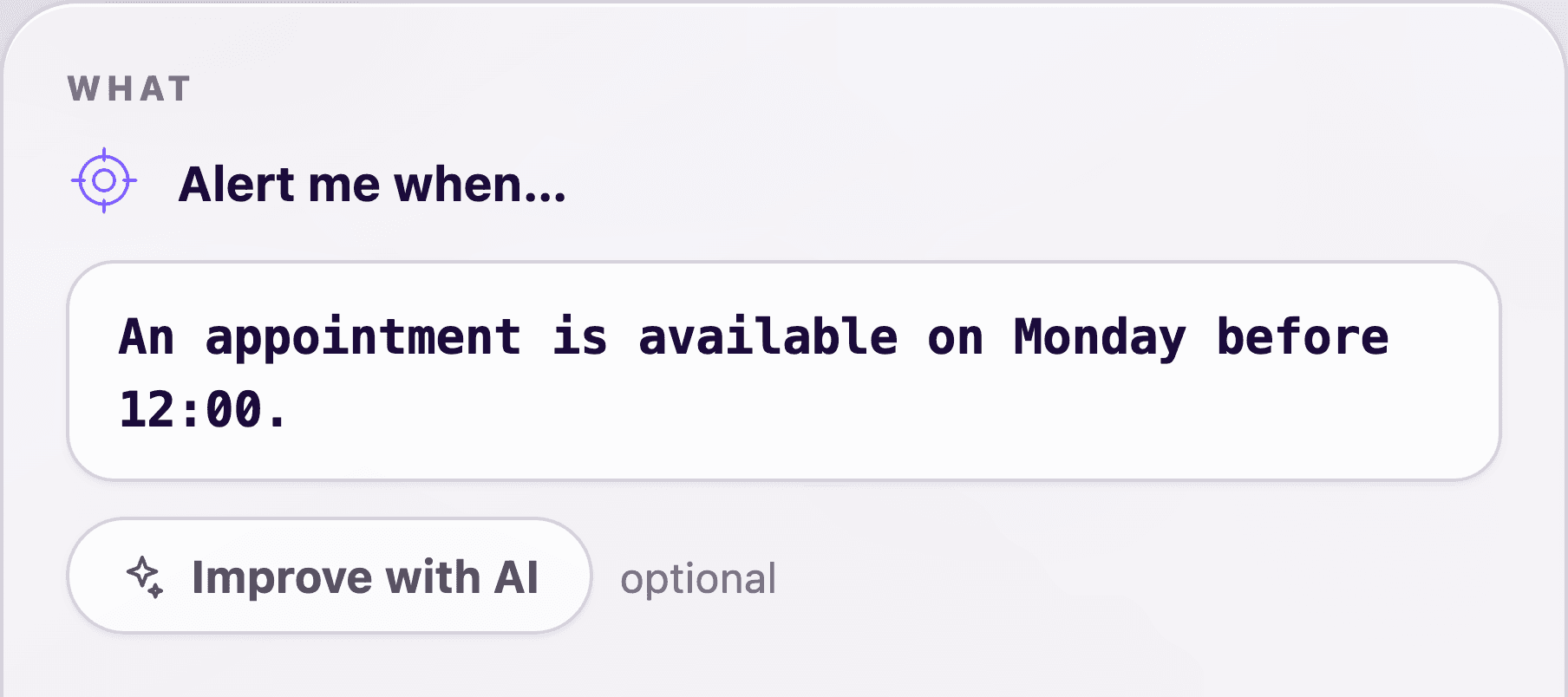
Screenshot: PageDog for Mac shows one specific condition that the selected area can prove. Captured August 5, 2026.
The optional Improve with AI button can suggest clearer wording. Read the suggestion before using it and make sure it still asks for the result you want.
Step 4: Choose when PageDog should check
In the When box, choose how often PageDog should open the page. Use the slowest schedule that is still useful to you.
- Use a short interval for something urgent, such as a scarce appointment.
- Use hourly or daily checks when the result is not urgent.
- Keep System selected for Mac notifications. Add email only if you want it.
- Increase the page load delay if the page needs extra time before its result appears.
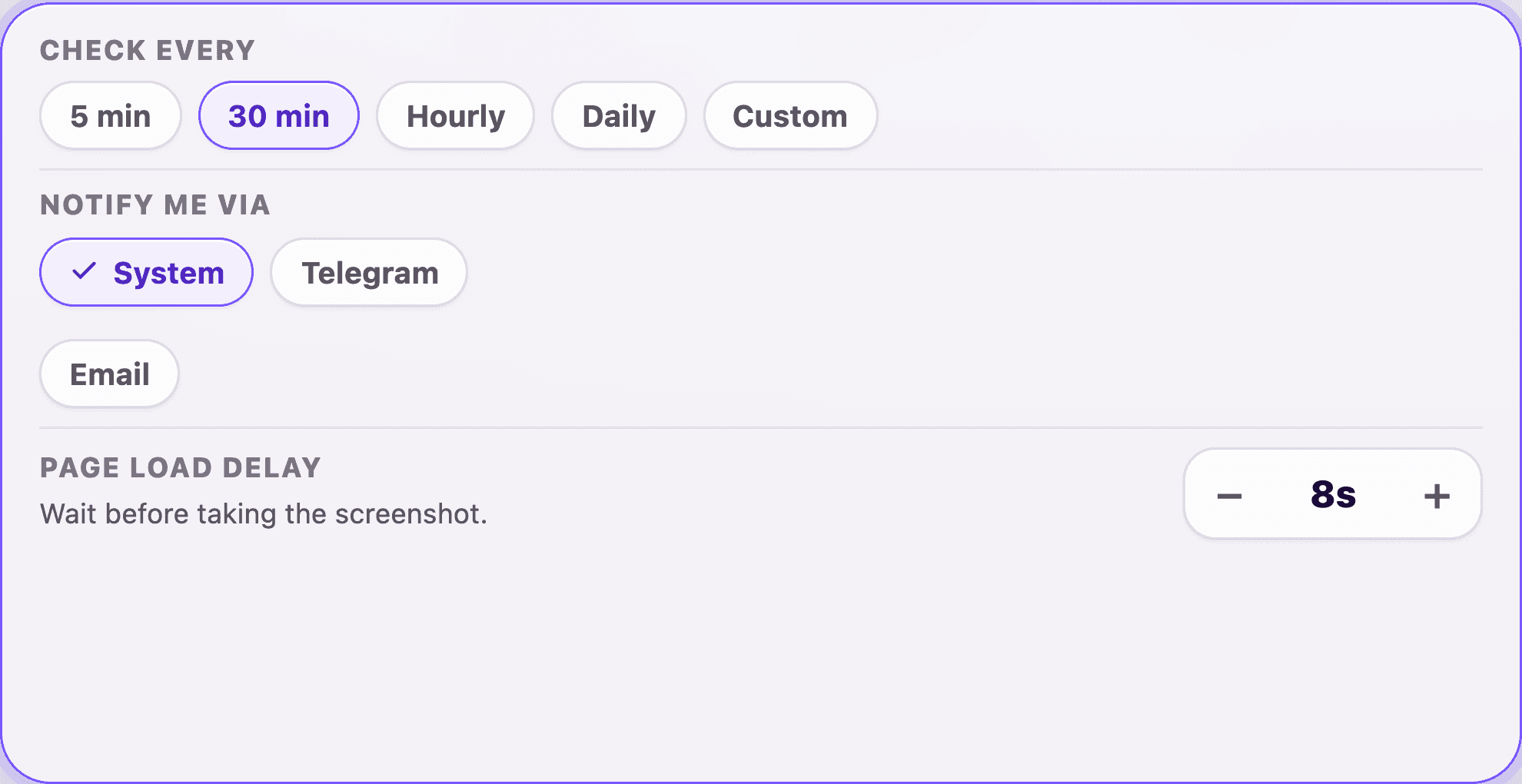
Screenshot: PageDog for Mac shows the check schedule, notification choice, and page load delay. Captured August 5, 2026.
Check the four cards once more. If the page, area, condition, and schedule look right, choose Create watch.
What happens after you create the watch
PageDog keeps the signed-in browser session on your Mac and uses it for later checks. During a check, PageDog opens the page, waits for it to load, and captures the area you selected.
Remember these three rules:
- PageDog must be open.
- Your Mac must be awake.
- Your Mac must be connected to the internet.
If one of those things is missing, PageDog cannot check the page at that moment. It resumes when your Mac is ready again.
For a more detailed explanation of local data and hosted AI, read what PageDog keeps on your Mac.
What to do when the login expires
Websites sometimes sign you out. When PageDog sees a login page, CAPTCHA, or another security check, it marks the watch as Needs attention.
Fix it like this:
- Open the watch.
- Choose Open page.
- Sign in or complete the security check yourself.
- Make sure the watched result is visible again.
- Close the PageDog browser window.
Closing the window starts a new check. If the webpage layout has moved, choose a new area instead of signing in repeatedly.
Keep the watched area simple
Busy account pages contain menus, clocks, recommendations, and banners that can change for unrelated reasons. Leave those parts outside the box whenever possible.
The best box contains the answer and just enough context to explain it. A product watch might include the product name, size, and stock message. An appointment watch might include the date and available time.
See how to monitor one part of a website for more examples. If a watch becomes noisy later, use the false-alert diagnosis checklist.
Know what PageDog cannot do
PageDog does not bypass passwords, solve CAPTCHAs, rotate proxies, or hide automation from a website. It works best when you can sign in normally and the result stays visible in one stable area.
Visualping’s password-protected-page guide describes other monitoring approaches, including device-based checks and server checks. PageDog’s approach is local: the browser visit and signed-in session stay on your Mac.
Do not rely on one watch as your only plan for something critical. Test the watch once, open its capture, and confirm that the selected evidence is correct.