In this article
This works well when the answer lives in one place: a fare, an appointment calendar, a ticket status, a product size, or a listing count. You do not need to turn the whole page into a monitoring project.
The setup is short, but each choice has a specific job.
Choose the area that contains the answer
Open the page in PageDog and select the visible region where the answer appears. Include the value or state you care about, plus enough nearby context to identify it correctly.
For example:
- Select the fare with its route and travel date, not the entire booking page.
- Select the availability message and calendar month, not the site navigation.
- Select the stock state and required size, not every product recommendation.
Smaller is usually clearer, but do not remove context that changes the meaning. A price without its currency, route, or date may not prove anything. The right area is not simply the smallest rectangle; it is the smallest complete piece of evidence.
Distill’s visual-selector documentation shows a competing element-based approach with expand, narrow, and exclude controls. This short walkthrough is useful for seeing why page scope matters, even though PageDog uses one rectangular visual area rather than XPath or CSS selectors.
Write one result PageDog can judge
Your tracking goal should state a condition that can be decided from the selected area. Use a concrete threshold, date, quantity, or state whenever the outcome depends on one.
| Instead of | Write |
|---|---|
| Watch this fare | Alert me when this fare is below €80 |
| Check for appointments | Tell me when August appointments are available |
| Monitor this product | Tell me when size 42 is back in stock |
Read the goal together with the selected area. If the area cannot visibly prove the condition, either expand the selection or simplify the goal. If you care about two unrelated outcomes, create two watches so each result remains easy to understand.
Set the schedule and let PageDog check
Choose how often the result needs to be checked. PageDog opens the page in its local browser and runs scheduled checks while the app is open and your Mac is awake and online. If a site asks for a login or security check, you handle it manually and then resume the watch; the signed-in page guide covers that recovery flow.
When evaluation is needed, PageDog uses the necessary selected-area before-and-after evidence to judge the exact goal. The watch detail keeps the goal, latest verdict, explanation, comparison, and local history together.
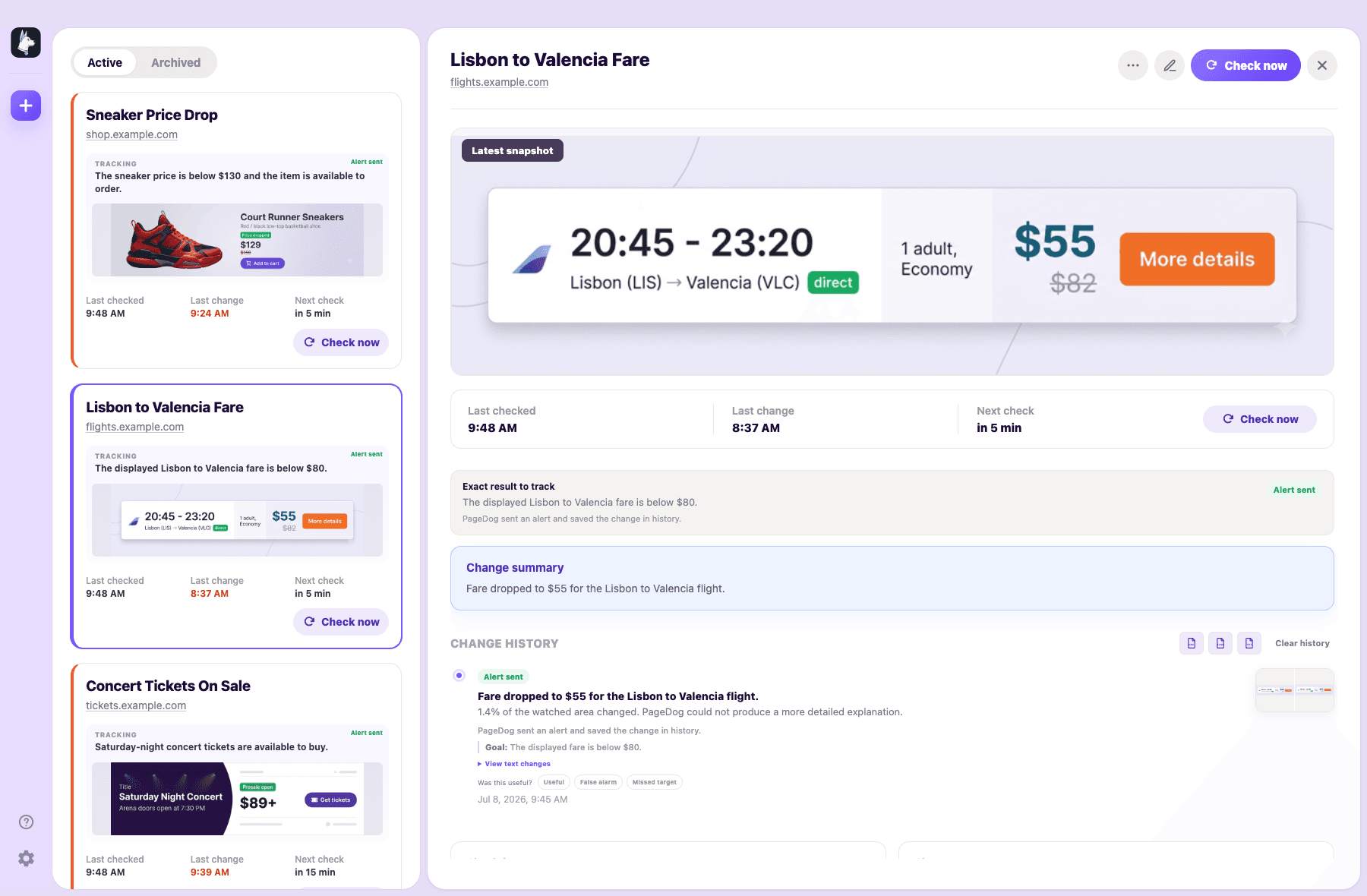
The watch detail gives you the real product proof: the result is presented beside the page evidence used to evaluate it.
For what remains local and what may be sent for a hosted verdict, read what PageDog keeps on your Mac.
Review the first result
After the first useful check, confirm four things:
- The selected area still contains the complete answer.
- The goal describes one outcome without hidden assumptions.
- The verdict and explanation agree with what you can see.
- The schedule is frequent enough for the opportunity, without checking unnecessarily.
Adjust the area or wording if the result is ambiguous. Once those pieces line up, leave the watch running and return when PageDog has a decision worth showing.
If a watch is already producing irrelevant notifications, use the separate guide on how to reduce false website change alerts to diagnose the noise without rebuilding every watch from scratch.