In this article
“Any website” does not mean every price is trackable. The page still has to load reliably, the relevant price must be visible, and the monitor needs enough context to know which offer changed.
Key facts
| Question | Practical answer |
|---|---|
| Can one tracker work on any website? | It can work on many public or session-accessible pages when the price is visibly rendered. Cart-only totals, CAPTCHAs, location prompts, and constantly changing layouts can make a watch unreliable. |
| What should the watch include? | The exact product or service, selected variant, seller or fulfillment method, currency, and visible price. |
| Should I use a store alert first? | Yes—when it supports the same item and price rule. Native alerts understand the retailer’s catalog and account state. |
| When is a webpage monitor better? | When the site has no suitable alert or you need one narrower visible condition, such as a specific variant below a threshold. |
| Does PageDog keep price history or compare stores? | PageDog saves local change history for each watch. It does not build a market-wide price database, compare stores, or buy automatically. |
What “any website” really means
A universal price tracker usually uses one of two methods. It either extracts a number from a page or watches a selected visual area for a change. Both depend on the page continuing to expose the same offer in a recognizable place.
That makes these pages good candidates:
- a public product page with a stable price block;
- a hotel-direct result for fixed dates and room terms;
- a signed-in page that reliably reopens in the same local browser session;
- a service page where one plan or fee is visibly listed.
These cases need more caution:
- the final price appears only after adding the item to a cart;
- a coupon must be clipped, a membership applied, or a location selected;
- the page rotates sellers, currencies, sizes, or delivery destinations;
- the site presents a login, CAPTCHA, queue, or anti-bot challenge;
- taxes or mandatory fees appear only at checkout.
The goal is not to capture the largest number on the screen. It is to watch the same complete offer each time.
Pick the right kind of price tracker first
Start with the source closest to the price.
| Need | Best first option | Why |
|---|---|---|
| A retailer already offers a matching alert | Retailer-native alert | It understands the exact catalog item, account, and availability state. |
| You need history, lowest-price context, or store comparison | Specialist price tracker | A structured price database can answer questions a page screenshot cannot. |
| You need one visible price on an unsupported site | General webpage monitor | It can focus on the exact on-page condition without requiring catalog support. |
| You need a page in your normal signed-in Mac session | Local visual monitor | The check can reuse the local session, although login and security prompts still need manual attention. |
For Amazon, for example, use the platform’s own controls or a dedicated Amazon tracker before adding a general monitor. Amazon’s current guide to price history and alerts explains its native path.
Current tools expose the trade-off clearly. AnyTracker’s App Store listing presents cross-website price and text tracking for iOS. UptimeRobot’s price-tracking tool asks for a public product URL, a highlighted price area, and an email destination. Visualping’s setup guide uses a selected page area and a change type, while Distill’s visual-selector guide documents element selection, expansion, narrowing, and exclusion.
Those are different products with different pricing, limits, browser behavior, and privacy models. Check the current terms before depending on one for an urgent purchase.
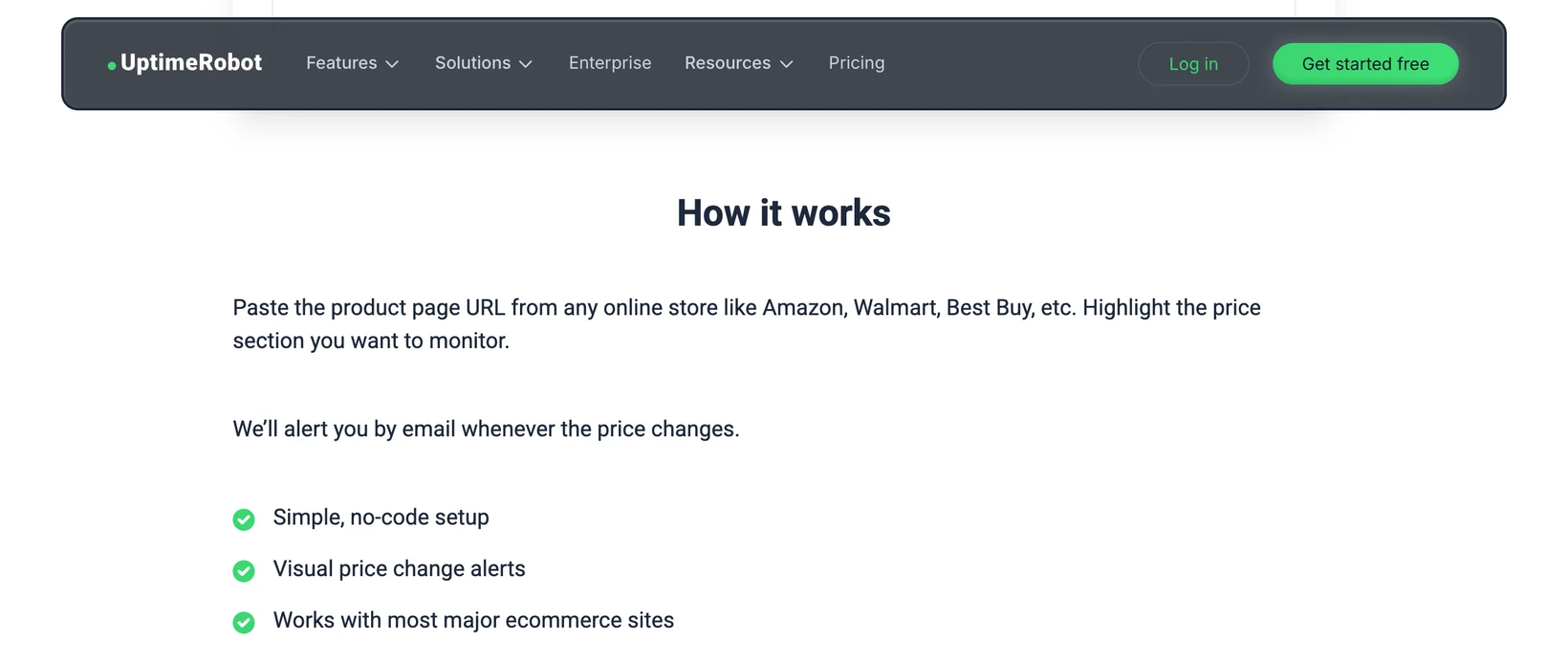
Live screenshot: UptimeRobot’s official price-tracking page describes a public-page workflow built around a URL, a highlighted price section, and email alerts. Captured 2026-08-11 at 2560×1440 px, then cropped without altering the interface and encoded at 1640×692 px for 2× display density at the article’s 820 px maximum width. The claims shown are UptimeRobot’s own.
See a website-wide tracker in practice
AnyTracker’s 19-second product video, published April 21, 2025, shows the consumer expectation behind this category: choose a value on a page and let an app check it. It is useful as a workflow example, but it remains a vendor demo—not independent proof that every site, variant, or checkout flow will work.
Select one price with enough context
Draw the monitoring area around the smallest block that can still prove all of these facts:
- The exact item or service. Include the product name, model, route, room, or plan.
- The exact variant. Color, size, storage, pack count, dates, guest count, or billing period can change the meaning of the price.
- The offer owner. Keep the seller, marketplace label, or fulfillment method when multiple offers can occupy the same page.
- The payable price. Include currency and any visible mandatory fee, coupon condition, or membership qualifier.
- Availability when it matters. A lower number beside Out of stock is not a buyable price.
Avoid navigation, recommendations, reviews, countdowns, and recently viewed products. They create changes without answering your question. The same evidence rule is covered in more detail in how to monitor one part of a website.
Write a price rule that can be judged
“Tell me when the price changes” is easy to configure but often produces alerts you cannot use. A threshold describes the decision.
| Weak rule | Useful rule |
|---|---|
| Alert me when this changes | Alert me when the black 256 GB model is below $700 |
| Tell me when the hotel is cheaper | Alert me when the refundable king room for October 12–15 is below €210 per night including visible mandatory fees |
| Watch this subscription | Alert me when the annual individual plan is listed below £80 before tax |
If the page cannot visibly prove every part of the rule, simplify the condition or expand the selected area. Do not ask a monitor to infer a checkout total, private discount, or future stock state that the page does not show.
Choose the slowest schedule that still gives you enough time to act. More frequent checks do not fix an ambiguous selection; they repeat it more often. If a watch becomes noisy, reduce false website-change alerts before increasing the cadence.
How to monitor one exact price with PageDog
Use PageDog when the price is visible but the site’s native or specialist alert does not express your exact condition.
- Open the exact product or result page in PageDog.
- Set the correct variant, seller, dates, location, or other page state first.
- Select the price together with the minimum identifying context.
- Write one testable goal, such as Alert me when this exact variant is available below €120.
- Choose a respectful interval or daily schedule and review the first result.
Set the exact price and availability condition
The setup screen keeps the evidence and the decision together. In the example below, the selected area includes the Court Runner product, current price, old price, availability, and purchase state. The goal is narrower than “price changed”: it requires a price below $130 and size 10 to be available.

PageDog’s current Create watch flow, captured from the desktop renderer on 2026-08-11 with clearly fictional example data. The screen shows the selected page area, exact goal, schedule, page-load delay, and available notification channels.
What this proves: One watch can tie the product evidence, a below-$130 threshold, size availability, check cadence, and notification channels to the same reviewable setup.
This is the difference between watching a number and watching an offer. A $129 price is not useful if the required size is unavailable, the seller changed, or the page silently switched to another variant. Put every visible fact required for the decision inside the selected area and goal.
Review why PageDog sent the alert
After a change, PageDog keeps the latest snapshot beside the saved goal. When the visible evidence satisfies that goal, the detail view shows the change summary, whether an alert was sent, and a local history entry. You can review the captured page state instead of acting on an unexplained “price changed” notification.

PageDog’s current watch-detail view, captured from the desktop renderer on 2026-08-11 with fictional example data. It shows the selected watch, latest snapshot, matched goal, change summary, delivery result, and saved local history.
What this proves: The latest page state, saved goal, $159-to-$129 change, alert-delivery result, and local history remain visible together, so the notification can be reviewed before you act.
Best fit and main limitation
Best for: one visible price on a site that lacks the exact native or specialist alert you need—especially when the product, variant, seller, and availability must all match one condition.
Main limitation: PageDog checks locally, so the app must be open and the Mac awake and online when a check is due. Login and security challenges require manual attention. It saves changes for the watch, but it does not build a market-wide price database, compare stores, predict discounts, clip coupons, add to cart, or buy automatically. The PageDog documentation describes the current scheduling, notification, and session limits.
The decision rule
Use the retailer’s alert when it matches your item and condition. Use a specialist tracker when you need history or comparison. Use a general webpage monitor when the exact visible offer falls through those gaps.
Before saving any watch, finish this sentence: “I will act when this exact offer shows…” If the answer names one visible product, variant, seller, availability state, currency, and price threshold, the page is a good candidate. If it depends on information hidden until checkout, the monitor cannot make that uncertainty disappear.
Research sources
- AnyTracker on the App Store — official iOS listing for cross-website price and text tracking.
- UptimeRobot: Free Price Tracking Tool — official public-page selection and email-alert workflow.
- Visualping: How to create a job — official setup documentation for area selection and change configuration.
- Distill: What is a visual selector? — official documentation for choosing and refining monitored page elements.
- AnyTracker on YouTube — official short product demonstration, published 2025-04-21.