In this article
Check the limit in your account first
Google's current help calls the product Gemini Notebook. These instructions were checked on September 28, 2026, after the September 2 usage change. If you arrived through an older NotebookLM tutorial, start with the current product's own notice.
Open Settings → Usage, then identify whether the problem concerns AI usage, the weekly allowance or the number of sources in a notebook. Google also puts a remaining-usage and reset message below chat. The time displayed in your account is more useful than another person's screenshot.
For a Studio artifact that can wait, check whether Generate later is offered on the web. Google's usage-limit instructions say deferred generation can take a couple of hours and can notify you when notifications are enabled.
A practical order is: read the notice, check the account's reset, decide whether to defer the artifact, then reconsider the size or timing of your task. An upgrade is a choice to evaluate after that diagnosis, not the first troubleshooting step.
Why an old “messages per day” table can mislead
Google's August 28 announcement introduced a more flexible consumer allowance, rolling out from September 2. Work consumes different amounts depending on factors such as prompt complexity, conversation length, sources and the feature being used.
That changes how to plan a session. A short question about a source and a lengthy generated artifact are different workloads. Counting your prompts alone cannot establish how much allowance remains. Equally, fewer prompts do not prove a malfunction if those prompts asked for more demanding work.
The announcement describes deferring outputs when they exceed the available allowance. That is useful when timing is flexible: prepare the material, request the artifact later and return to review it. It is less useful when you need to inspect and correct the result immediately before a meeting.
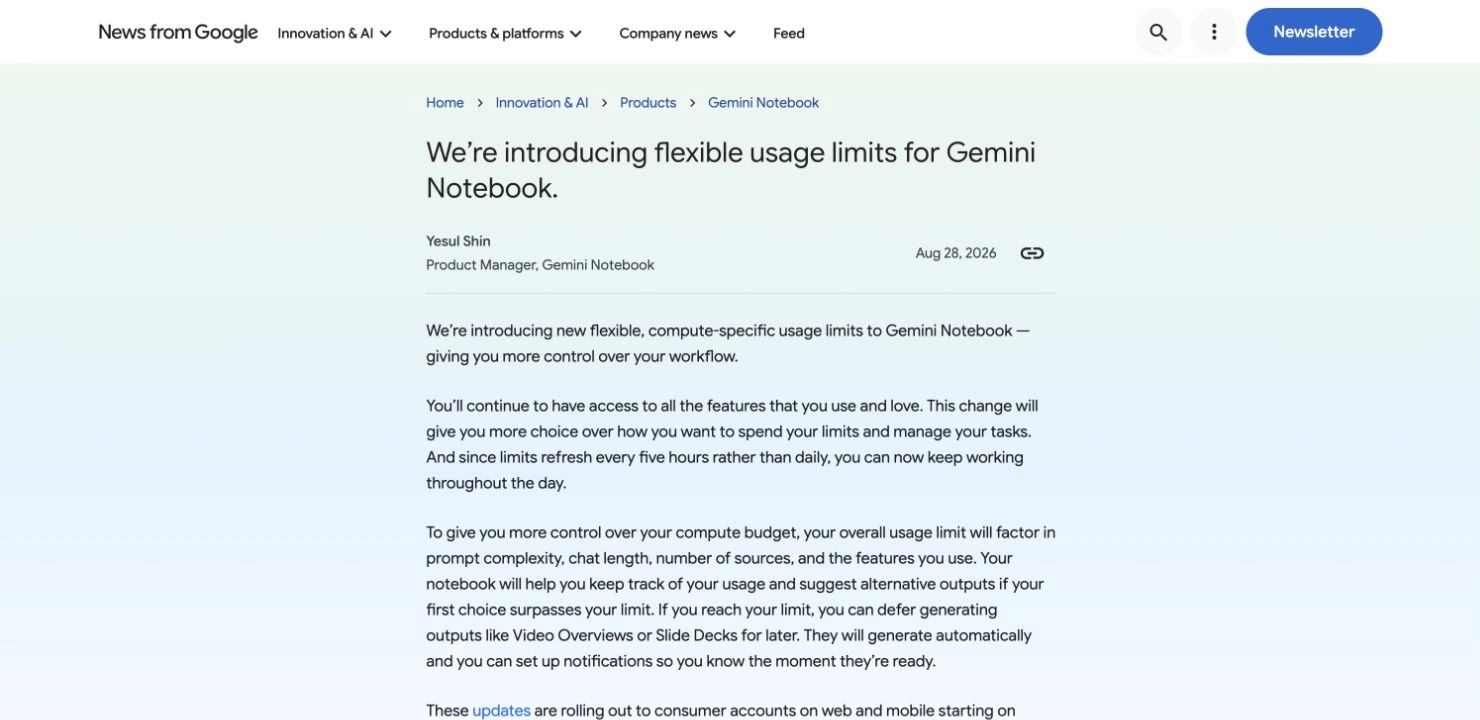
Source: Google announcement, captured September 28, 2026. The August 28 announcement explains the September change; the current help page adds the weekly-limit qualification. Open the full-size image.
There is also a documentation trap. At this check, Google's upgrade page displayed a September 2 change notice while retaining a table with older daily feature counts. Follow its link to the newer usage explanation and the notice in your account. Do not turn a legacy table into a guaranteed number of current daily chats.
Source caps and AI usage answer different questions
The upgrade page separately lists source capacity per notebook. At this check, its standard, Plus and Pro columns show 50, 100 and 300 sources respectively. Sharing a notebook does not change its source limit.
Those numbers describe how much material a notebook can hold. They do not promise a matching number of questions, generated summaries or videos. A notebook can have room for another source while its current AI allowance is exhausted; the reverse can also be true.
| Visible problem | Useful next check |
|---|---|
| A usage notice shows a reset time | Read that notice and the Usage screen before retrying. |
| The weekly allowance is exhausted | Check the weekly information; a five-hour interval alone is not a promise of restored access. |
| Another source cannot be added | Compare the notebook's source count with the current source-cap table. |
| A Studio artifact needs more allowance | Check its estimated usage and whether Generate later is offered. |
| An older guide gives a daily count | Compare its date with the September change and your current account notice. |
Suppose you are preparing a briefing from 20 documents. If all 20 are already in the notebook and a generation is blocked, deleting documents solely to get below a 50-source ceiling addresses the wrong limit. First establish which restriction the product actually reports. Keep a copy of your own task outline so you can resume without reconstructing the intended result.
Use the video as an explanation, not a current account demo
Thoughts Brewing, LLC's September 3, 2026 video explains the new usage model and deferred generation. It is an independent creator explanation. The presenter notes that the Usage view had not yet reached their account, so the video should not be read as proof that every viewer saw the same controls on that date.
Use the video to understand the change, then use Google's current help and your own visible message to choose an action. Our separate Gemini app usage-limits guide covers the chat app; its details should not be transplanted into a Notebook workflow.
Watch future public policy changes on your Mac
Google already provides an account usage view and a deferred-generation notification. PageDog has a different role here: checking whether a public rule you depend on changes again.
For example, a team may plan research sessions around the published refresh policy. A useful condition would be: “Notify me when this page states a refresh interval other than five hours, or explicitly changes the weekly-limit rule.” That is more precise than an alert for every edit anywhere in Google's Help Center.
In PageDog, open the public usage-help URL, select the visible paragraph containing the rule, and describe that condition. Run a check and inspect the evidence. Confirm that the selected paragraph is still visible after a reload and that a navigation banner or language change has not replaced it. The PageDog documentation explains creating a watch; our website-change monitoring guide covers choosing a narrow area.
Checks run locally on an awake, connected Mac. Hosted AI evaluates the selected evidence, so local checking is not fully offline analysis. This workflow does not inspect your remaining quota, reset it, generate an artifact, or bypass Google's restrictions. Keep private notebook content outside the public-policy watch.
Make the next decision from the notice you can see
If a near-term reset solves the problem, return at the time shown. If an artifact can wait and the web product offers Generate later, use that native option. If you repeatedly hit a source cap, evaluate capacity separately from AI allowance.
For deadline-sensitive work, leave time to read and verify the output after it becomes available. A completed generation is only the start of that review. Record the rule and date you relied on, and revisit them when Google updates the documentation.
Sources
- Current usage: Google's Gemini Notebook usage-limit guide.
- Change announcement: Flexible usage limits, August 28, 2026.
- Capacity and legacy-table context: Upgrade Gemini Notebook.