In this article
Identify what is stale
Use a concrete difference that you can verify in the source. An answer that sounds old is harder to investigate than a source viewer that still shows a superseded deadline.
| What looks old | Compare it with | What the comparison tells you |
|---|---|---|
| Imported Drive content | The same original Drive file | Whether the source has refreshed |
| A local PDF or text upload | The file on your computer | Which copy entered the notebook |
| A new answer | Its cited passage and selected sources | Whether the answer used the intended evidence |
| A previously generated output | The sources used when it was created | Whether you need a new output |
| An unavailable source | Current access to its original | Whether permission needs attention |
Google’s source-import documentation now uses the name Gemini Notebook. Readers searching for NotebookLM should check that they are following instructions for the notebook experience and client they actually use.
The distinction matters because older tutorials can describe behavior that changed. Keep the source type and the date of the instructions beside your test, especially when you are deciding whether automatic sync should apply.
Check a Drive source against its original
Google announced automatic Drive syncing for NotebookLM on May 26, 2026. The official release notice describes updating notebook content as the original Docs, Sheets or Slides file evolves.
The current help page says Drive sources sync every few minutes and update when you open the notebook. It also describes a manual sync action within the opened source. Check that action in your client if a known change has not arrived.
Use a short, distinctive passage for the comparison. Suppose a team changed a deadline from Monday to Thursday. Open the Drive file and locate that exact sentence, then open the notebook source and find the corresponding passage.
Record both observations and when you made them. If the original is current and the notebook copy is old, the next check concerns ingestion or sync. If both show Thursday, investigate the answer or generated artifact that still says Monday.
Confirm that the files are actually the same. A copied document with an identical title can make two correct screens appear to disagree. Follow the original source link where available and compare its identity with the file that was edited.
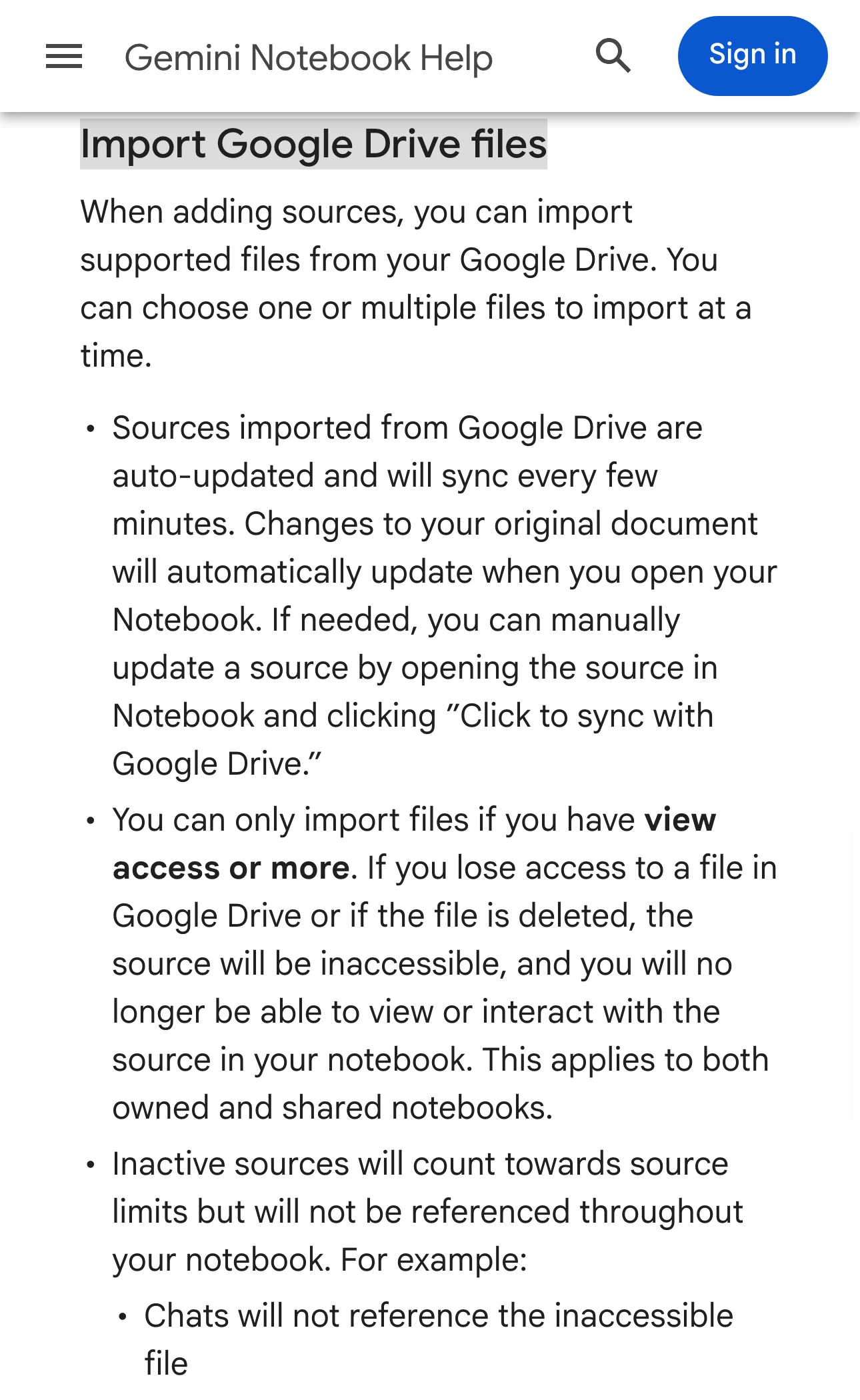
Source: Official documentation, captured November 19, 2026.
Verify access before replacing a source
Google’s current documentation says a Drive source becomes inaccessible if the original is deleted or you lose access. That is a different problem from content arriving late.
Open the original using the same account you use for the notebook. If it requires permission, use the normal access request or ask the owner to check sharing. A source list entry does not establish that you still have access to its contents.
For a shared notebook, describe the affected source to its owner before removing it. Keep enough information to reconnect the correct original. Repeatedly deleting and re-importing a source can obscure which version produced a previous answer.
An August 2026 community report describes this exact confusion. The discussion identifies a reproducible sync problem as something to report through feedback. Use the official help page for expected behavior and the discussion as an example of what to document.
Treat an uploaded copy as a version you selected
When you upload a local file, record its filename, export date and one identifying passage. Editing another copy on your computer does not by itself establish that the notebook received those edits.
For a PDF exported from a longer document, check the exported PDF first. A source can accurately reflect an outdated export. Open the candidate replacement and verify the changed paragraph before importing it.
Preserve the evidence you need from the existing source before replacing anything. If several similarly named copies appear in the source panel, choose the intended one for the test and note which sources are selected.
This is especially useful for a recurring report. Name a new export by its reporting period and confirm a known figure. Then ask one focused question about that figure, with the source identified in the prompt.
Check a new answer separately from an old artifact
Google’s help page explicitly says generated studio outputs do not change when you update or delete a source. A previously created artifact can therefore remain old after its underlying source is current.
First verify the source viewer. Then ask a fresh, narrow question and inspect the citation. For the deadline example, ask which day is stated in the named source and open the cited passage.
If the source and fresh answer agree, create a new version of the output you need. Keep the older artifact labelled so readers can distinguish versions. Regeneration is a useful test after source verification; it is difficult to interpret when the input version remains unknown.
For a problem creating audio, use the separate Audio Overview troubleshooting guide. A source-version problem and a generation failure need different evidence.
This independent demonstration shows a manual source refresh. It was published on May 25, 2026, before Google announced automatic Drive syncing the following day. Use it to recognize the source view and compare passages; follow the current help page for expected sync behavior.
Watch the external source that changes your research
If a notebook depends on a public policy or release page, PageDog can monitor the exact visible passage you care about on your Mac. A useful condition might be that a documented deadline changes or a named feature becomes available.
After an alert, open the official page and check the change. Then verify how your notebook imported that source and whether the relevant passage is current before asking for a new output. The website-change monitoring guide covers choosing a focused area.
PageDog checks the selected visible area locally while the Mac is available. Keep the watch on the public source you need to follow. Updating a notebook and verifying its citations remain steps you perform in the notebook.
End the investigation with a small record containing the original source, imported version, changed passage, test time and fresh-answer citation. If those still disagree after the documented sync steps, attach that reproduction to feedback. If they agree, regenerate the specific output whose information has become stale.