In this article
Start with the project that will own the work
For an ongoing writing or research task, begin with the native project controls. Open the intended project, review its sources, and inspect Project settings. The current OpenAI project guide describes files, instructions and memory as separate parts of the setup.
This guide was checked on November 22, 2026. Tutorials that say you must recreate an older project to change its memory setting can be out of date. The current guide allows changing that setting later and warns that the change can take a few hours to take effect.
Keep the first test small. A project for a monthly public newsletter might need one approved style sheet and one current issue brief. Adding an entire archive before checking a basic result makes a failure harder to explain.
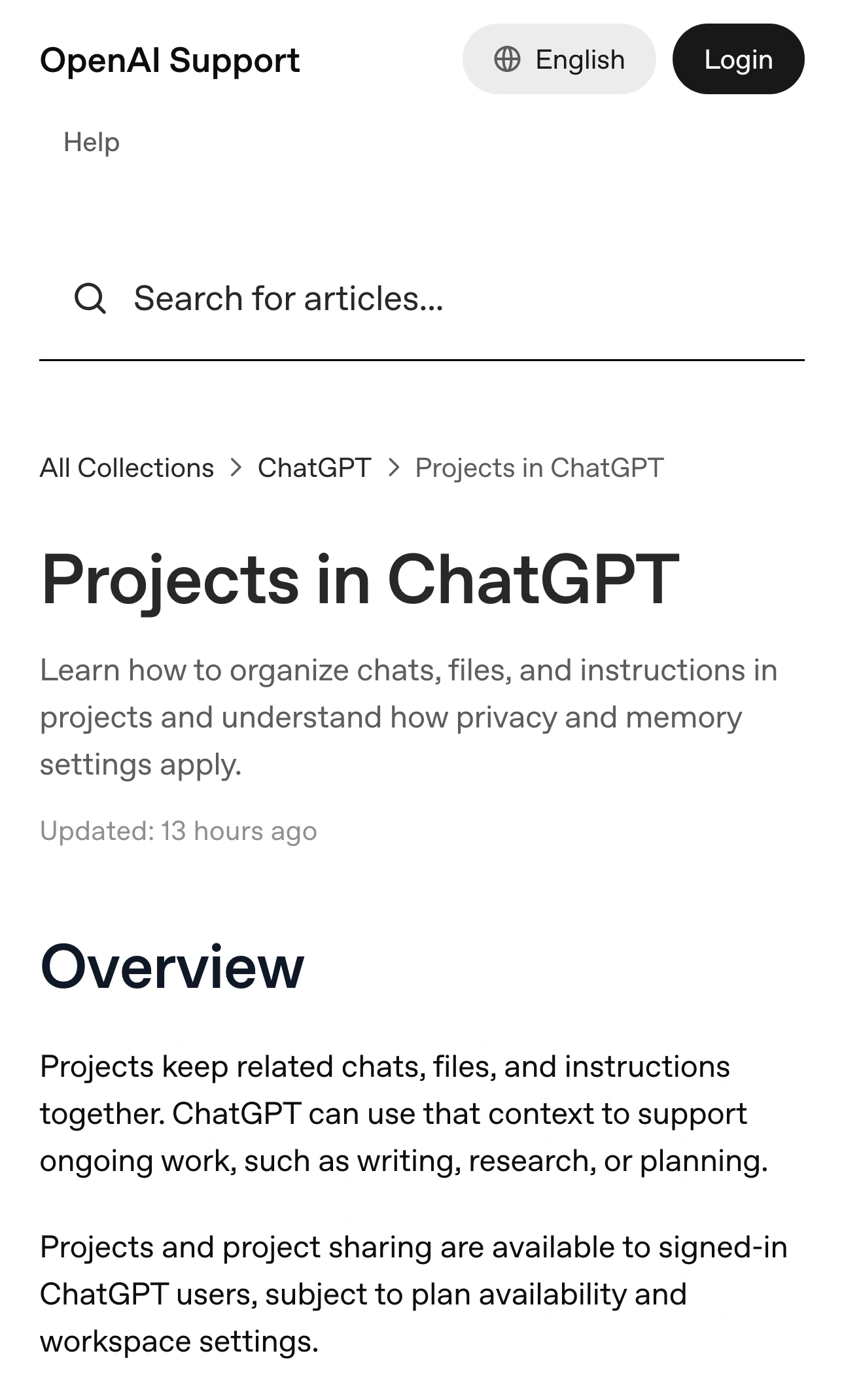
Source: OpenAI Help Center, captured November 21, 2026. The overview separates ongoing context from account availability.
Make a context inventory before asking for a draft
Write down what each input should contribute. This is a proposed verification worksheet, not a claim that we tested your account.
| Input and example | Observation to record |
|---|---|
| Reference file: Approved newsletter style sheet | Exact filename and version |
| Current facts: This month's public event brief | Date and facts the answer must use |
| Project instructions: Audience and output format | Saved text visible in settings |
| Memory setting: Project-only or default | Current selection and time changed |
| Conversation: A fresh test in the intended project | Where the chat appears |
Use filenames that distinguish revisions. For example, newsletter-brief-2026-11-approved is easier to verify than two files both called brief. Keep a separate copy of the approved material so you can compare the answer with the source.
Ask for one fact whose answer you already know: the event date in that brief, followed by the filename used. Check the actual file afterward. A confident filename in a response is a lead to inspect, not proof that the correct revision supplied the answer.
Give instructions a different job from reference material
Use project instructions for stable requirements such as audience, tone and output structure. Keep changing event details in the current brief. That separation makes maintenance easier: a new date should require updating the facts, rather than hunting through several duplicated prompts.
OpenAI's Academy introduction to projects explains why a continuing body of work benefits from keeping its materials together. Our practical addition is to define a short acceptance check before generating the full deliverable.
For the newsletter example, ask for a heading, a 60-word announcement and a source note. Check three things: the heading addresses the right audience, the paragraph uses the approved date, and the source note points to the intended brief. Change one input at a time if a check fails.
Avoid making a test so complicated that you cannot tell what passed. A long request for ten documents, a calendar and a social campaign creates many possible explanations for an incorrect result. Establish the small case first, then expand the work.
Inspect memory rather than inferring it from an answer
The current Help Center distinguishes default memory from project-only memory. Shared projects use project-only memory. Do not assume that a project icon, a familiar phrase in an answer or the word “project” establishes a privacy boundary.
Record the visible memory selection before testing. If you have just changed it, note the time and allow for the documented delay. Repeatedly rewriting instructions during that interval makes comparisons less useful.
For an ordinary public test, put a harmless reference phrase in the project brief and ask about it in a new project chat. Compare the response with the file. This checks whether the intended material is useful for that task; it does not establish every possible memory or data-handling behavior.
If your goal is a one-off conversation instead of a continuing workspace, our Temporary Chat guide covers a separate choice. Choose the workflow first, then verify its controls.
Diagnose the missing input before rebuilding the project
A failed answer can have several causes. The source may be missing, a file may be an old version, the conversation may be outside the intended project, or the task may require information you never supplied. Start by identifying which observation disagrees with your worksheet.
If the file did not upload, use the file-upload troubleshooting guide. If the task depends on an external account, the connector access checklist helps distinguish an installed app from a successful retrieval.
Keep a short comparison record: request, expected fact, actual fact, source version and the single change you made. A result that becomes correct after several simultaneous edits tells you less about which edit mattered.
Aga Murdoch’s September 12, 2025 independent walkthrough can help locate the basic project controls. The video below demonstrates organizing work in projects; its interface and availability details reflect its publication date. Use today's official guide for memory settings and current limits.
Follow the specific rule your workflow depends on
If a changing project feature affects your process, PageDog can watch the relevant public documentation section on your Mac. Select the paragraph describing the memory-setting change and define the exact condition worth rechecking.
Checks run locally while your Mac is available. When your plan uses AI, hosted AI receives bounded captured evidence for the verdict. After an alert, reopen the official source and inspect the actual wording before revising your procedure. Keep the watch on public documentation rather than private project content.
A reliable project setup leaves you with a small inventory and a repeatable check. Know which source supplies the facts, which instructions shape the output, and which visible memory setting applies. Recheck those inputs when the result stops matching the work you intended.