In this article
Check the exact connection
Open the Google Workspace connection guide and match the action you want to the supported capabilities. A connection you use to retrieve information might have different limits from one that creates or modifies an item. Keep the name of the app and the requested action together while troubleshooting.
Separate access from the result
If the connection appears, try a simple action using information you are allowed to share. Record whether Gemini recognizes the app and whether it can complete the action. If you can select the app but the action fails, look up the action's restrictions and the permissions on the underlying item.
Follow the requirement that affects you
If the official guide says access is unavailable in your situation, check the exact requirement when Google updates it. A local PageDog watch can flag a visible change in that section while the Mac is available. Reopen the official guide and confirm access in your account after the alert.
See the Gemini in Chrome guide for a missing browser toolbar button or the Gemini scheduled actions guide for a problem with a saved schedule.
Verify the account that owns the information
Open Gemini and the Google service in separate tabs. Compare the account shown in each tab before checking any setting. If the file is stored under your school account but Gemini is using your personal account, switch to the appropriate eligible account and try again. Avoid copying the file into another account just to test access. A document you are authorized to read at work may still be subject to rules on where it can be stored.
Use a document you can already open directly. Choose something with a distinctive title and a short passage you can independently verify. Ask for one detail from that document. If Gemini refers to a different file with a similar name, narrow the test using the exact title or another identifier that the app supports.
Check the Workspace setting and Keep Activity
Google lists sign-in to the same account and Keep Activity among its requirements for the Workspace connection. Check the current requirements for your account and consider what the activity setting means for how your conversations are retained. If your organization manages that setting, ask the administrator which options are available for your account. Viewing the source in Drive and allowing Gemini to use a connection are separate permissions.
When asking an administrator for help, include the app and action you tried, whether the app appeared, and which client you were using. A simple report might say that the Workspace app is missing on the Gemini website for a managed account, while the same account can open the relevant file in Drive. The administrator can then check the connection policy without needing the contents of the file or your prompt.
Tell a missing app from an unsupported action
A missing entry in the app list points you toward account eligibility or configuration. An app that appears but cannot perform a specific operation calls for a different test. Start with one action that the help page explicitly supports and compare that with the action that failed.
Suppose Gemini can summarize a short document that you own, but fails on a shared file. Open the shared file in Drive using the same account. If it opens, verify the requested operation against the Workspace guide and try a request that references only that file. If the problem follows a single file, document the difference for support. If multiple known-good inputs fail, keep the error and the time of the test.
You may still be able to complete the original task in the service itself. If your goal is to find one file before a meeting, search Drive directly while you investigate the Gemini connection. Save the integration setup for when you can verify it against a small test.
Keep a record of the requirement you are waiting for
Write down the app, the account type, the client and the relevant sentence in the official guide. When you revisit the page, look for a change to that requirement. A new app announcement may describe a different account type or action. The exact line you recorded gives you something to compare.
If you set up a PageDog watch, select the smallest visible section that contains the requirement and describe the change that would make you recheck. Reload once and confirm that the selected area still includes the same heading. After an alert, open the documentation, verify that the change applies to your account, and repeat the small test in Gemini. Keep the watch on the public help page so the evidence excludes the contents of mail and documents.
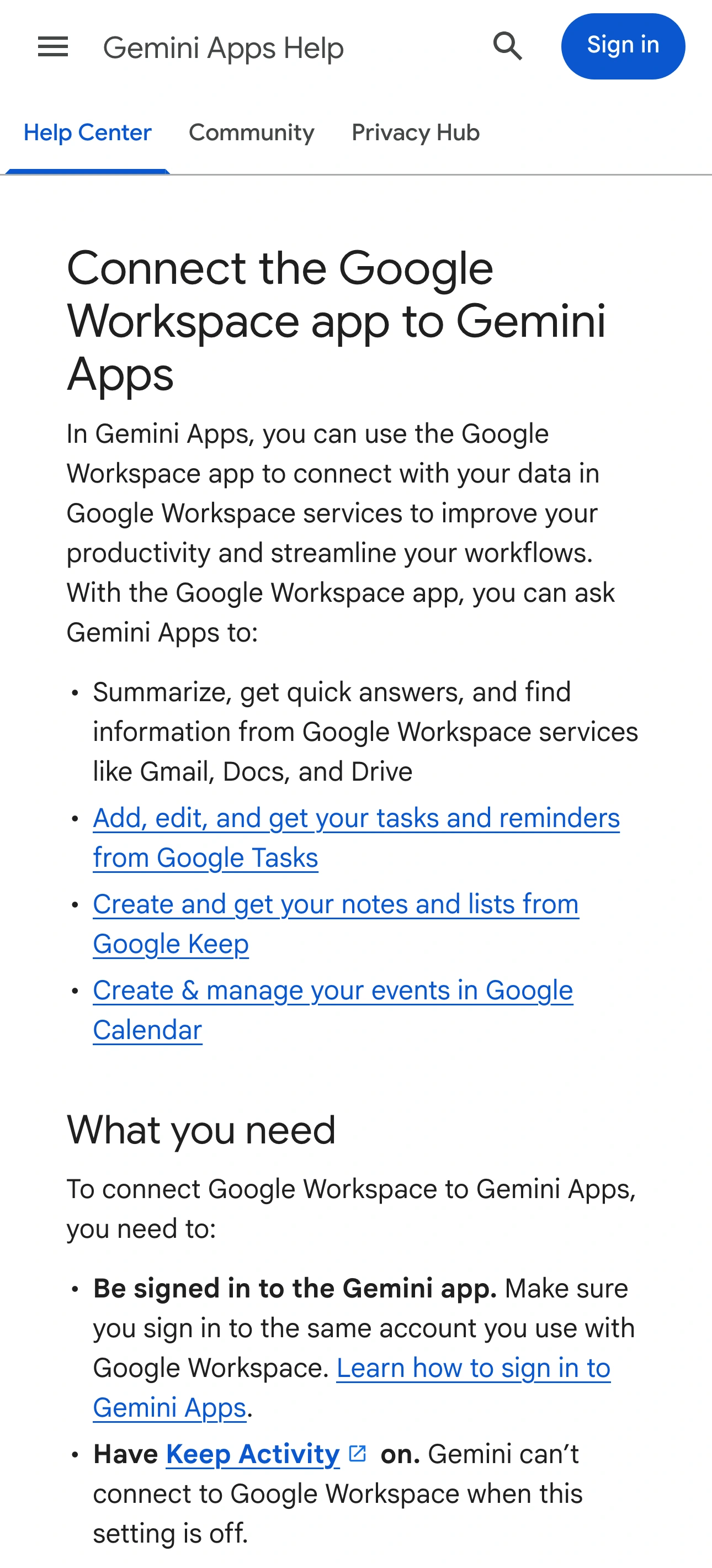
Source: Official documentation, captured November 16, 2026.
This walkthrough shows how the Drive connection and a focused file request work together. Menu labels can change. Use Google’s current help page for eligibility and account requirements.