In this article
Decide what you want to carry into the conversation
The current Temporary Chat guide describes a choice between Personalized and Unpersonalized before the conversation begins. This is an important difference from tutorials that describe every temporary conversation as a blank slate.
As checked on November 20, 2026, the two choices affect existing personal context. Temporary chats do not create or update memories while they remain temporary. OpenAI’s Memory guide explains how that differs from using previously remembered information.
| Your goal | Choice to inspect | What to verify |
|---|---|---|
| Get an answer without existing personal context | Unpersonalized | The choice is selected before sending |
| Use preferences already known to ChatGPT | Personalized | Which existing context is relevant |
| Return to the conversation later | Save as a regular chat | The consequences shown before saving |
| Keep only a useful result | Copy the needed result | That your destination contains the complete passage |
| Use an external app or GPT action | Its separate access and data handling | The recipient and requested operation |
Choose the goal before writing a long prompt. A conversation used to draft a generic announcement may need different context from one tailored to your own writing preferences.
For example, if you are comparing two phrasings for a public notice, you can paste both versions and the exact audience instructions into the new conversation. That makes the task understandable from the information you deliberately provide.
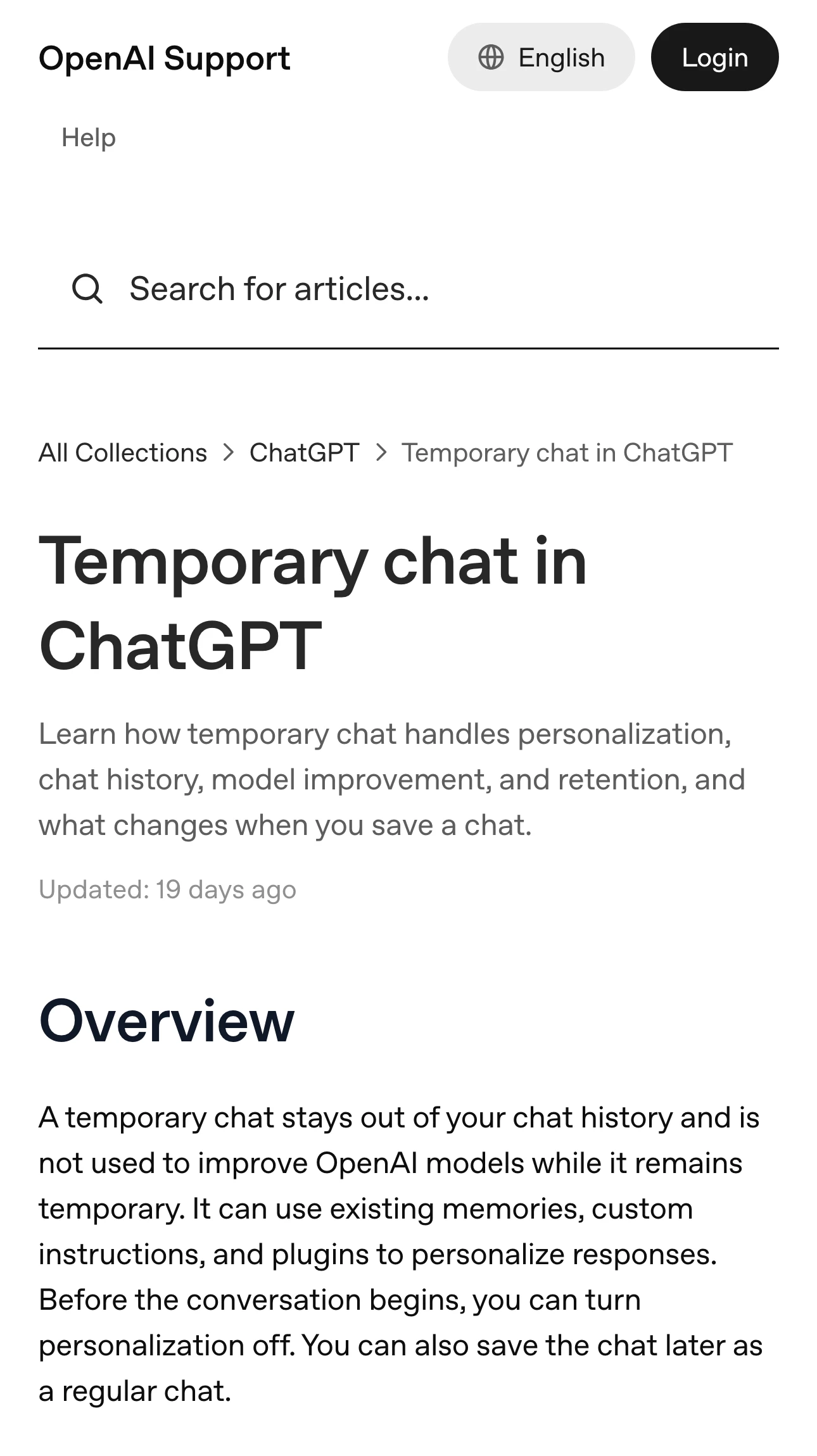
Source: Official documentation, captured November 20, 2026.
Check the mode before the first message
Open a new chat and inspect the controls actually shown in your account. Select Temporary and review the personalization choice. OpenAI says you cannot change personalization after the conversation starts, so make that decision before entering the material.
Do a small, ordinary test when you are learning the interface. Ask for a neutral example sentence rather than starting with a document you cannot easily recreate. Note where the mode is indicated so you can recognize it next time.
If the controls differ from a screenshot in a tutorial, compare them with the current official instructions. Account and workspace restrictions still apply. A missing option is a reason to verify availability in your own interface.
Keep the question of conversational context separate from the quality of an answer. An answer that resembles your usual style does not establish which setting was selected. The setting visible in the product is the useful observation.
Plan how you will keep the result
A temporary conversation can be useful for a one-off task, but decide what you need to retain before leaving it. A short result copied into a document may be enough. A long sequence of revisions may require keeping more context.
For a writing task, save the final passage together with the instructions that make it usable. If you requested a 150-word announcement for existing customers, keep that audience and length requirement alongside the output. Otherwise, a later editor has to reconstruct the purpose.
For a calculation, keep the inputs and assumptions with the result. A total without its units, reporting period or excluded items is difficult to verify later. This is a recordkeeping step you control regardless of which chat mode you chose.
If you decide to save the chat, read the conversion prompt. The Temporary Chat guide says saving creates a regular conversation, which then follows your account’s personalization and model-improvement settings. Review those settings before making that change.
The ChatGPT file-upload troubleshooting guide covers a separate problem when the material you want to use will not attach. A successful attachment and a decision to keep a conversation are different checkpoints.
Understand the retention statement
OpenAI says temporary conversations are not used to improve its models while they remain temporary, and a copy may be retained for up to 30 days for safety. History visibility and retention describe different parts of the experience.
Use the wording of the current policy when explaining the mode to someone else. “I cannot reopen this from history” does not establish that no copy exists anywhere. Record what the product and documentation actually say rather than replacing them with a stronger privacy promise.
OpenAI also describes limited safety-related uses of context separately from Memory personalization. If your purpose is to avoid personal context in an ordinary response, check the Unpersonalized choice. For a broader data-handling requirement, review the relevant account and workspace policies.
A practical note might record the selected mode, whether the conversation was saved, and where you retained the result. That gives you a small audit trail without copying the entire conversation into several locations.
Review external actions on their own terms
The official Temporary Chat guide says information sent to a third party through a GPT action follows the recipient’s privacy policy. Review the recipient and the proposed operation before using it.
Suppose your task is only to compare two short passages. You can complete that comparison with the text you supplied. If the workflow also proposes sending a result to another service, evaluate that additional step against what you intended to accomplish.
The ChatGPT release-notes guide explains how to follow a product change that affects your workflow. Use current documentation for settings and availability, especially when a video demonstrates an earlier interface.
This independent walkthrough demonstrates the Temporary Chat interface. Compare its controls with the current OpenAI guide, especially the personalization choice and the effect of saving the conversation.
Follow a documented change that matters to you
If your workflow depends on one Temporary Chat setting or retention statement, PageDog can watch that exact public help-page section on your Mac. For example, select the paragraph describing what changes when a temporary conversation is saved and define the condition you want to recheck.
PageDog checks the selected visible area locally while the Mac is available. Open the official guide after an alert and confirm the new wording before changing your own process. Keep this watch on public documentation so its captured evidence excludes private conversation content.
Before starting the next temporary chat, make three decisions. Choose the personal context it should use, decide how you will preserve a useful result, and review any action that sends information elsewhere. Those decisions make the mode easier to use consistently.