In this article
Create one useful company alert first
Open Google Alerts with the Google account you want to use. Enter the company’s full name. For a distinctive multiword name, try quotation marks to keep the phrase together, then inspect the available preview before creating the alert.
Choose Show options, review the frequency, sources, language, region, result quantity and destination, then select Create Alert. Google’s official setup guide describes emails about newly found results matching your topic. This is a discovery service, not an assurance that every mention or page edit will arrive in your inbox.
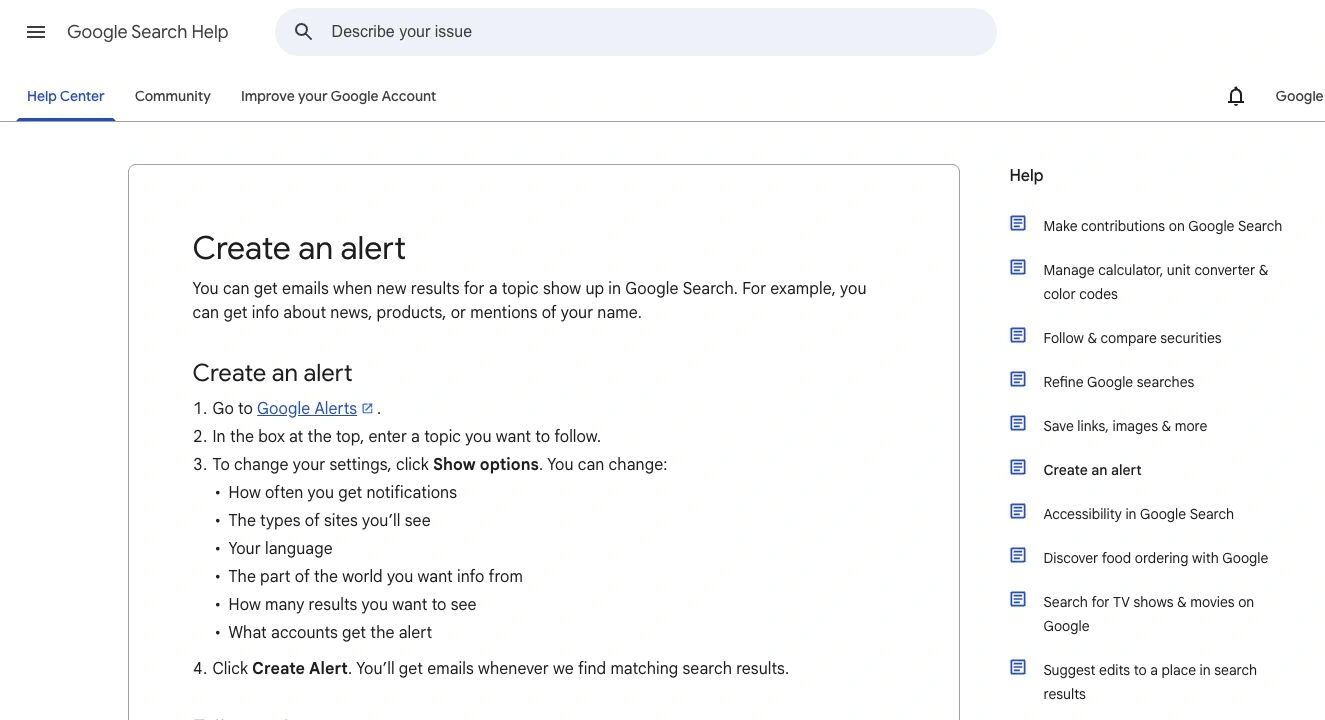
Source: Google Search Help, captured September 24, 2026. The page defines the alert in terms of new search results. Open the full-size image.
In our September 24 check, a preview for "PageDog" explicitly said there were no recent results and displayed existing matches below. Those included PageDog pages and unrelated uses of the same word. A populated preview therefore did not prove that a new matching result was ready to trigger an email.
Start with one company rather than a large list. Your first few messages will reveal whether the name is distinctive enough and whether the results support a real decision. An alert you routinely ignore is a prompt to narrow the task.
Decide what “follow this company” means
A supplier announcement, an independent review and an update to an existing feature page are different signals. Write down the action you would take before choosing a query or monitoring tool.
| Your question | Useful starting point | What to verify |
|---|---|---|
| Who is mentioning this business? | Company-name alert | Results refer to the right business |
| Has it published a new announcement? | Its newsletter or feed, then a focused alert | The announcement is current and relevant |
| What are people saying about a product? | A separate product-name alert | The name is not shared with another product |
| Has a specific feature become available? | Release subscription or a check of its status page | The visible statement actually says it is available |
For example, a small team following a software supplier might want news for a weekly briefing and one feature-status change for a migration plan. Combining those into a single “company updates” task makes it harder to tell which notification needs action.
Refine ambiguous names with a small query set
Google’s search-operator documentation explains quotation marks, site: and minus signs. Treat the following as starting queries to test in Alerts, rather than guaranteed coverage rules. The company and domains here are illustrative.
| Purpose | Example query | Check before saving |
|---|---|---|
| Follow a precise company name | "Northstar Analytics" | The phrase is how relevant articles name the company |
| Reduce an unrelated meaning | "Northstar" analytics -astronomy | The exclusion is not removing useful coverage |
| Focus on its own site | site:example.com "Northstar" | The selected domain belongs to the company |
| Follow a separately named product | "Northstar Beacon" | The product name is sufficiently distinctive |
Avoid piling every restriction into one query. A company may be mentioned without the product name, and an article can discuss multiple subjects. Over-filtering can hide the result you wanted.
A useful manual review is to inspect the first ten available preview results: how many concern the intended business, and which unwanted meaning keeps recurring? If only three are relevant, fix the name ambiguity before increasing notification frequency. This is a suggested relevance check, not a measured success rate for Google Alerts.
Keep company and product alerts separate when they support different actions. Review overlapping messages together; receiving the same article twice does not make it two independent pieces of evidence.
Choose delivery settings for the decision
The current Alerts interface offers As-it-happens, At most once a day and At most once a week, plus source, language, region and result-count choices. We checked these controls on September 24, 2026.
For a weekly competitor briefing, a daily or weekly delivery setting can be a reasonable starting point. For an announcement that affects today’s work, you may prefer the more frequent option. The setting still does not guarantee that Google discovers every result immediately.
Choose language and region deliberately. Restricting them may reduce irrelevant coverage, but can also remove international reporting about the same company. Similarly, news-only results answer a narrower question than broader web coverage. Change one setting at a time so you can understand why the output changed.
Lewis Vandervalk of Blue Crocus Solutions demonstrates the name-and-business setup in this March 16, 2025 walkthrough:
This independent tutorial helps you follow the configuration sequence. It is not an official Google video or proof of complete social-media coverage. Use the current Google controls and help page when the older screen differs.
Check account and delivery problems before replacing the tool
If messages stop, first confirm the signed-in account, the saved destination and whether the alert is enabled. Then check mailbox capacity and spam handling, as Google’s troubleshooting section recommends. No new message can also mean no new matching result has been found.
For a managed work account, Google Workspace administrators can control access to Alerts. If the service is unavailable there, ask your administrator about its status rather than assuming your search wording is wrong.
Keep the diagnosis specific: an inaccessible service, a delivery problem and a query with little matching content need different fixes. Broadening a query cannot correct an incorrectly selected inbox.
Add a page check for a visible company change
Google Alerts is useful when you want to discover coverage. A different task is: “Tell me when this supplier’s feature page changes from private preview to generally available.” Start with the supplier’s release newsletter or feed if it covers that exact need.
When it does not, a selected-area monitor can check the statement itself. Google’s crawling guidance explains that newly published or changed content may not yet have been crawled. Setting a faster email frequency is not the same as scheduling an inspection of that page.
In PageDog, open the target page on your Mac and select the feature name together with its visible availability statement. Write a condition such as: “Notify me when this feature is described as generally available.” Run a check and inspect the captured evidence before relying on the schedule.
This is a separate watch for a known page, not a web-wide mention search. PageDog performs page checks locally on an awake, online Mac and uses hosted AI to evaluate the selected area. It does not provide offline AI, cloud checks while the Mac is off, or automatic handling of login and CAPTCHA challenges.
Our website-change monitoring guide covers that setup. If the selection captures banners or unrelated updates, use the false-alert checklist. After a notification, verify the current source before changing your plan.
Keep an alert only if it supports an action
Review your company alerts after enough messages arrive to judge them. Keep the queries that produce useful coverage, revise ambiguous names and retire redundant alerts. For a specific feature or policy state, record the source page and condition separately. That small distinction makes a company-monitoring routine easier to trust.
Research sources
- Setup and delivery: Google Alerts and Google Search Help, checked September 24, 2026.
- Query syntax and access: Google’s search-operator and Workspace documentation linked above.
- Coverage boundary: Google Search crawling guidance; the independent video demonstrates setup, not a completeness guarantee.