In this article
Check what your iPhone can install first
For the update available to your device, start with Settings → General → Software Update. Apple's current update instructions, published September 15, say this screen shows the installed version and whether an update is available. A future-release headline cannot answer that device-specific question.
The same menu contains Automatic Updates. Apple describes options for automatic installation and background downloading; the installation option works overnight while the phone is charging and connected to Wi-Fi. Follow Apple's backup and preparation instructions before installing.
That handles the ordinary “tell me when I can update” job. A separate website monitor is unnecessary if this is all you need.
| Version or date | What Apple has confirmed | What it does not establish |
|---|---|---|
| iOS 27 — September 14 | The public software rollout has begun. | Every feature is available on every device or in every region. |
| iOS 27.2 — September 16 | Beta releases are available for development and testing. | A public release date for ordinary users. |
| iOS 27.1 — October 23 | The upcoming iPhone Duo will run this version when it becomes available. | An October 23 update for every existing iPhone. |
This comparison uses Apple's September 14 release announcement and September 16 developer announcement. The dates belong to different events; they should not be combined into one countdown.
Why “the next update” can mean three different things
A search for the next iOS update can mean the next version you can install, the next testing build, or the software shipping with a new phone. Write down which one you mean before comparing results.
For example, imagine you already installed iOS 27 and see an October 23 headline. The useful next question is “Does Apple say this update applies to my existing model?” The developer announcement ties that date to iPhone Duo. It would be a mistake to turn it into a general availability promise.
Similarly, a higher version number on a developer page does not mean your Software Update screen is missing a public release. A beta is a testing release. Its existence proves that development has advanced; it does not prove that the same version is ready for everyone's normal update channel.
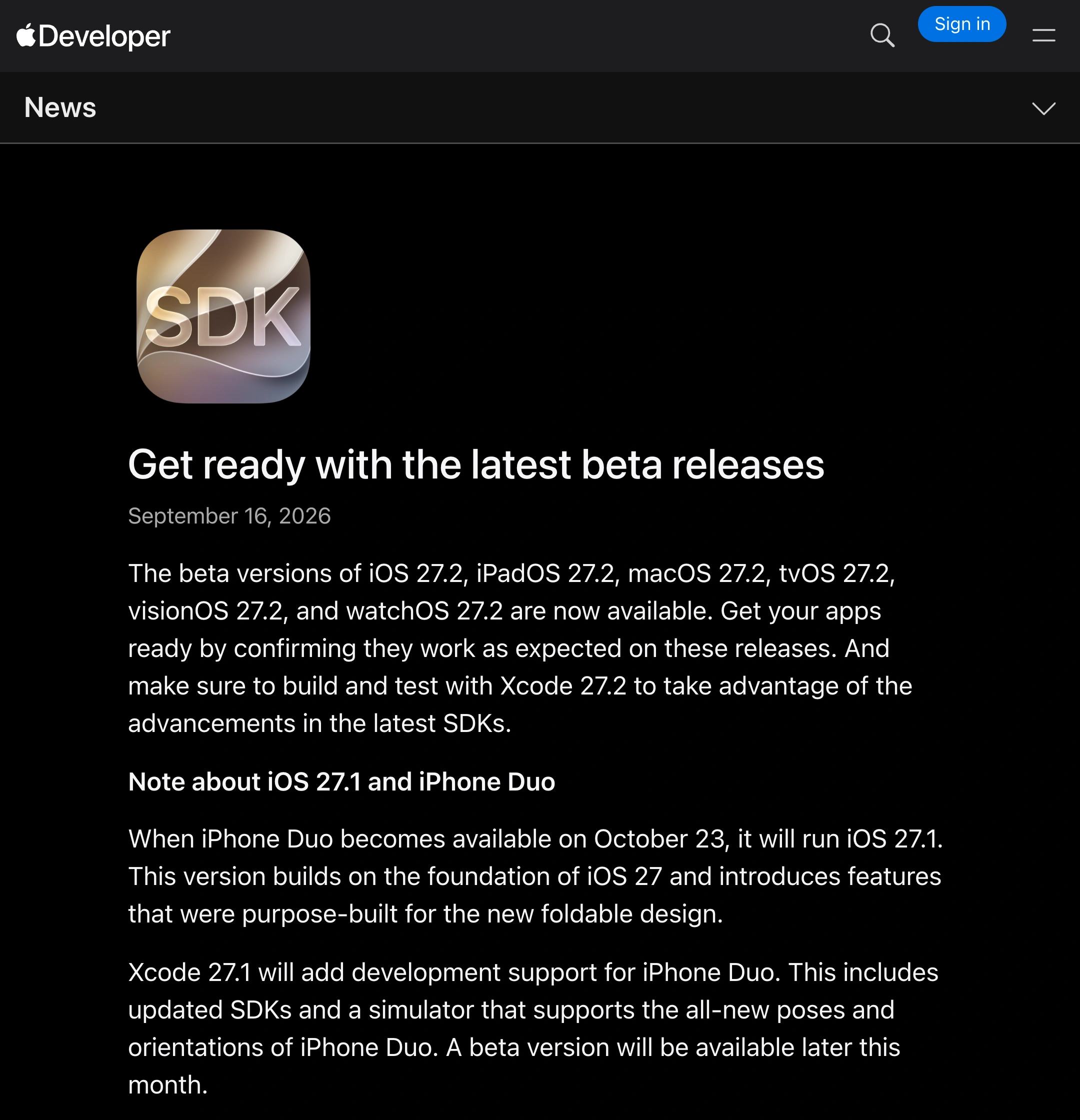
Source: Apple Developer announcement, captured September 17, 2026 at native 3× resolution. The word “beta” is essential to interpreting the announcement.
Our source comparison is a dated snapshot, not a forecast of Apple's next release. Reopen the official links if you read this after a later announcement.
Watch the installation steps, not a release-date prediction
Apple Support's September 14, 2026 walkthrough shows how to check for an available iPhone or iPad update. It is useful if you want to find the right screen rather than interpret another article about upcoming versions.
The demonstration covers the native update workflow. It does not announce when iOS 27.2 will leave beta or guarantee availability for a particular phone. Use the options and explanatory text shown on your own device.
Give each source one job
Use a small source map instead of repeatedly searching the same broad phrase:
- Software Update: the version currently offered to your device.
- Apple Newsroom: a public launch announcement and its availability qualifications.
- Apple Developer: beta releases, developer tooling and device-specific development notes.
- Apple's iOS page: the feature overview and compatibility context for the major release.
The official iOS overview is useful for deciding which capabilities matter to you. It serves a different purpose from a dated announcement about a point release.
Independent coverage can supply context. MacRumors' iOS 27 roundup collects major features, while Macworld's update guide explains the broader release. Check the date and scope of the relevant section before treating either as evidence for a later version.
An article written for launch morning may remain highly visible after launch. Read its date and verbs together: “expected,” “beta available” and “released” describe different levels of certainty. A fresh page timestamp alone does not show which paragraph changed; our website last-updated checklist explains that distinction.
Get future announcements from Apple's release feed
For general release news, Apple offers an official releases RSS feed. Add it to a feed reader you already use, then open the original entry when an update appears. This is a native source for release announcements; it does not install software or replace the update screen on your phone.
Keep the release channel in your reading rule. An entry marked beta answers a different question from a public availability announcement. If your reader supports filters, use them to reduce unrelated platform entries, but verify the complete title and source before drawing a conclusion from a shortened notification.
A practical check after a new announcement is:
- Identify the platform and exact version number.
- Read whether the entry says beta, public release or availability on new hardware.
- Follow the release notes for the relevant scope and limitations.
- Check Software Update on your own device if your question is whether you can install it now.
The important distinction is between receiving an announcement and being offered an installation. Apple's own tools cover those jobs. For another example of separating announcement surfaces and release notes, see our Claude release-notes source map.
Decision rule: check the device for installable updates, read the latest dated Apple announcement for future releases, and keep beta, public availability and new-hardware dates separate.
Research sources
- Apple: the linked Software Update instructions, September 14 public announcement, September 16 developer announcement and iOS overview.
- Context: the dated Apple Support walkthrough, MacRumors roundup and Macworld guide linked beside the tasks they help explain.